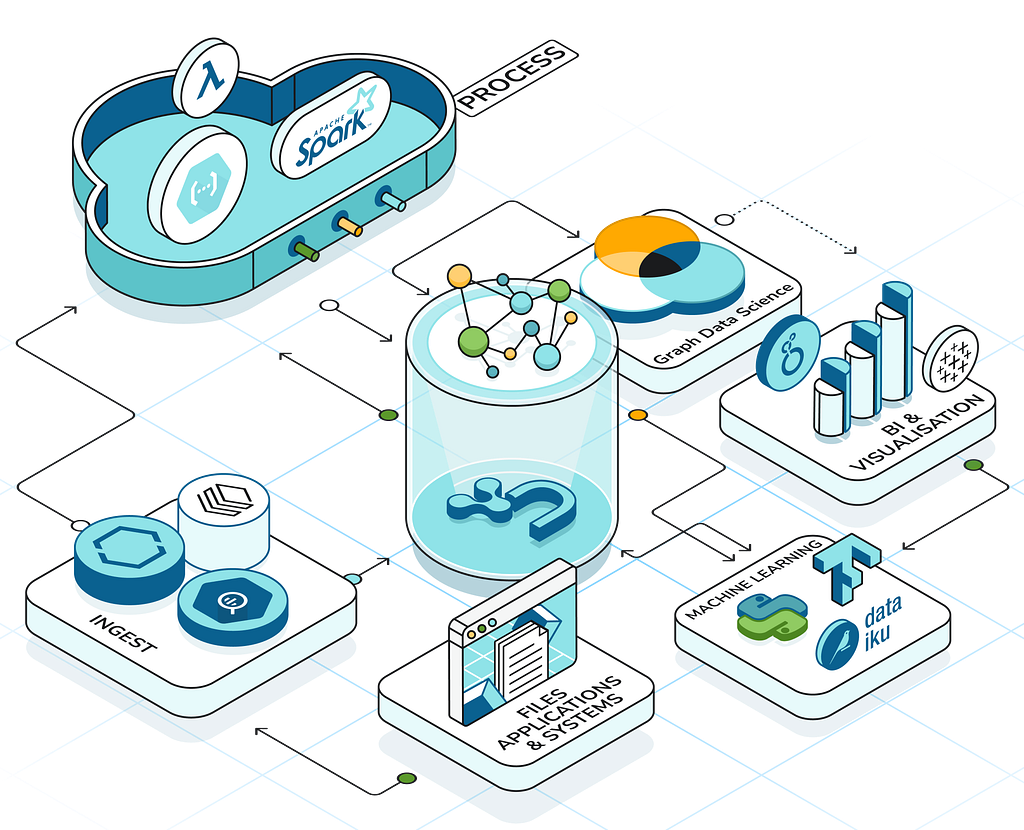
How to Launch Neo4j Fleet Manager and Maximize Its Value


4 min read
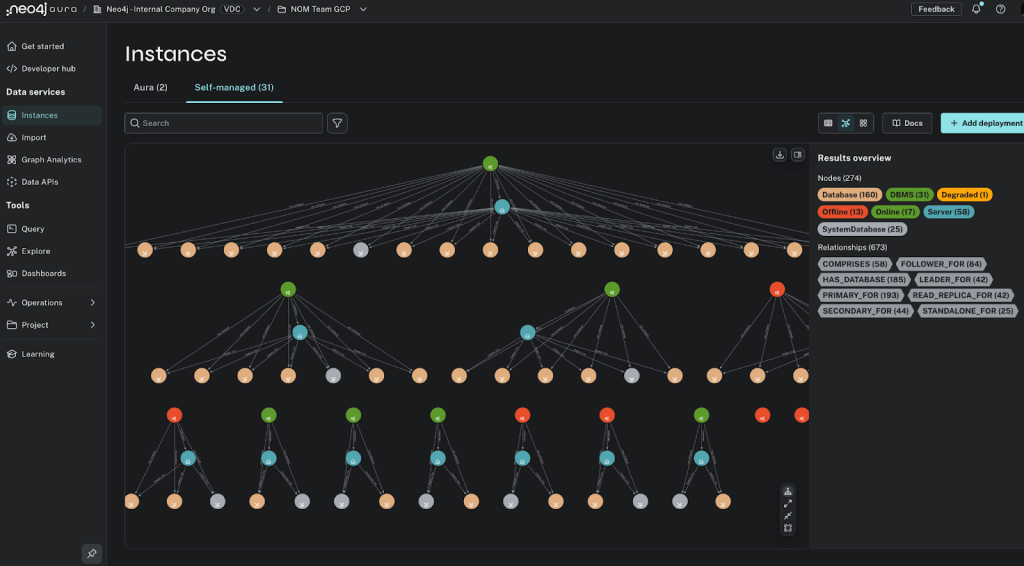
Today, Neo4j launched Fleet Manager, a centralized control plane that allows you to manage your Neo4j databases across cloud, on-premises, and hybrid environments. It offers visibility into your entire fleet, unified policy enforcement, and automated workflows for provisioning, upgrades, and migrations. You can use Fleet Manager to:
- Register self-managed instances into the unified Aura console
- Monitor their topology, metrics, health, and version status
- Use the latest unified console tools to connect to self-managed instances with Query, Explore, and Dashboards
- Connect AuraDB, Enterprise, Community, and Desktop editions of Neo4j in one place
- Receive support for self-managed editions from Neo4j v4 LTS edition
And you’ll soon be able to build a roadmap for seamless migration to Aura managed services and receive security advisories and upgrade recommendations.
In this post, we’ll show you how to launch Fleet Manager and get the most out of it going forward. We’ll start with the setup, run through some of Fleet Manager’s essential capabilities, and then offer a few pro tips for maximizing its value.
How to Add a Self-Managed Graph Database (Enterprise Edition) to Fleet Manager
- Log in to the Aura console, open self-managed instances, and click Add Deployment > Fully Monitored Deployment.
- Download the Fleet Management plugin matching your Neo4j version and place the .jar file in the plugins directory. Aura console guides the user through this process.
- Update neo4j.conf to
allow fleetManagement.*procedures and restart Neo4j. - Verify installation in cypher-shell with
CALL fleetManagement.status();to confirm that the plugin is detected. - Register your instance by copying the token from Aura and running
CALL fleetManagement.registerToken('<token>');. - Confirm the connection in cypher-shell and view your registered self-managed instance in the Aura console.
For more information, take a look at our documentation.
How to View Your Entire Fleet
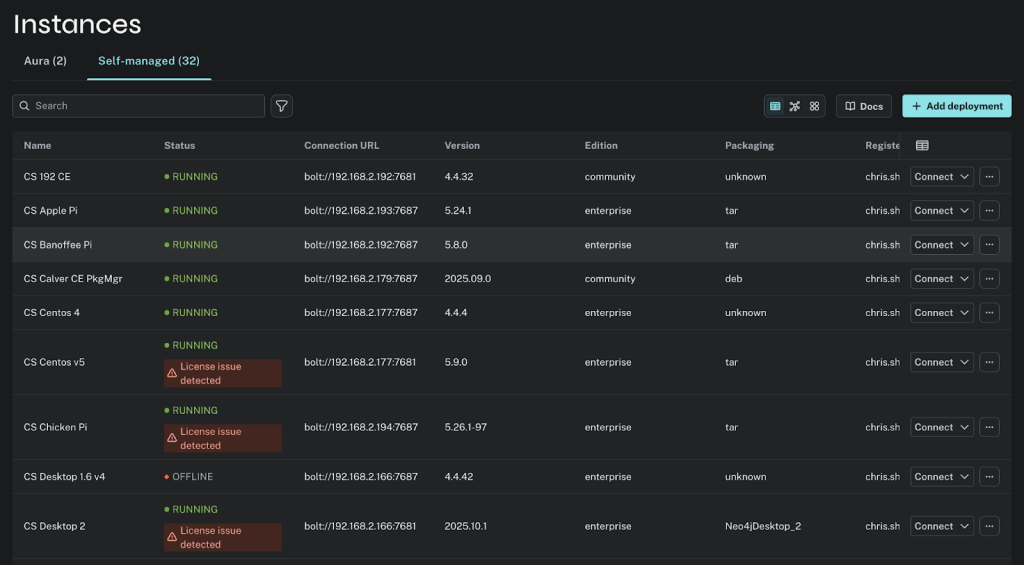
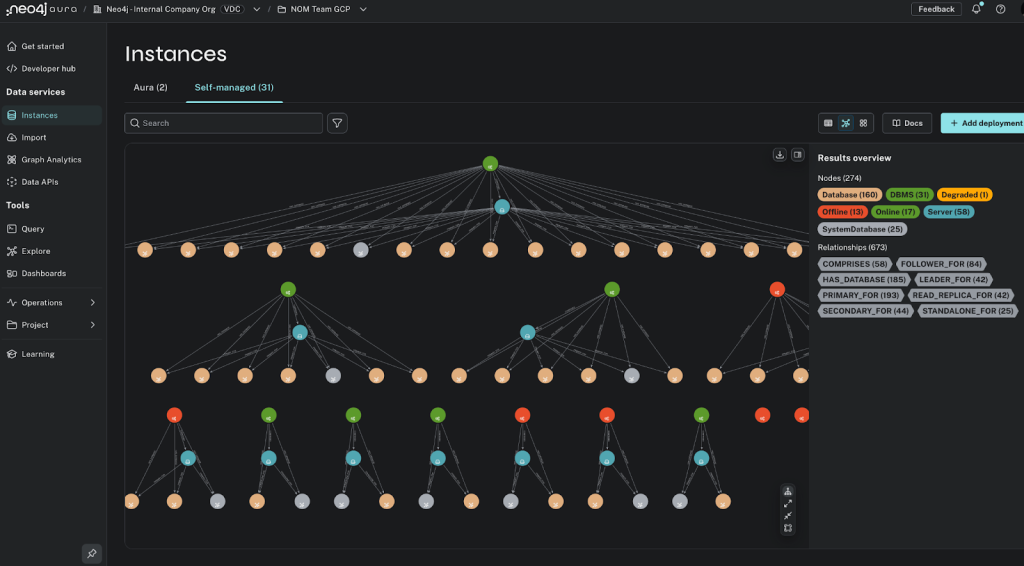
Once Neo4j instances are added to the fleet, the database administrator can view all the instances in the Aura console. They can choose a list view or a graphical view of the database topology.
1. Get a Complete Inventory of Your Instances
View metadata such as name, status, connection URL, version, license type, edition, and packaging—all from a single console. This helps you quickly identify outdated versions, offline instances, and configuration drift.
2. Understand the Topology of Your Fleet
Visualize how clusters, databases, and servers are connected. See leaders, followers, read replicas, and relationships between nodes to diagnose issues or plan for scaling.
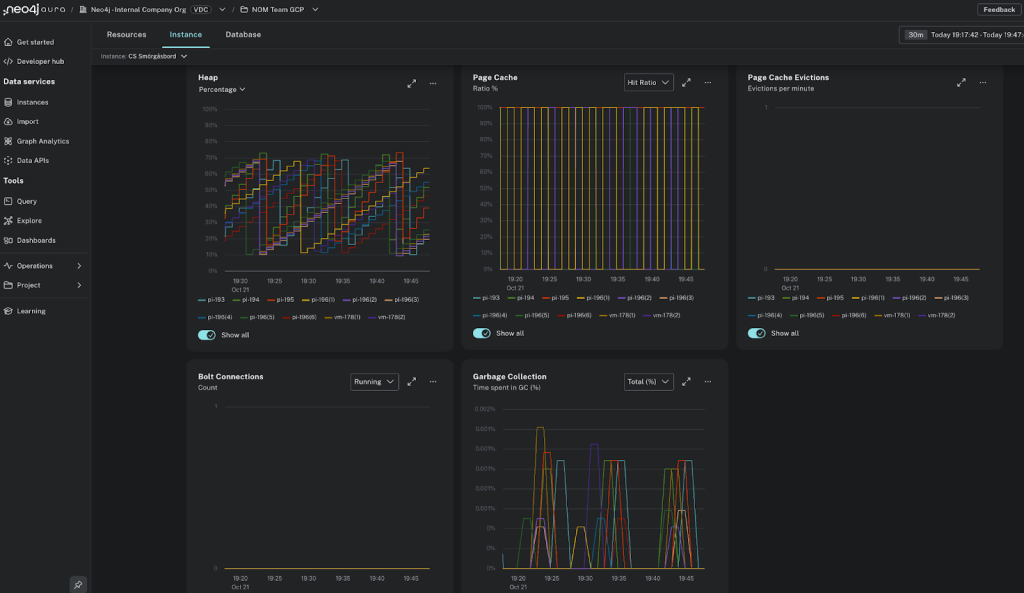
3. Monitor Performance and Health Across the Fleet
Gain end-to-end visibility into resource usage, performance trends, slowdowns, and potential failures across AuraDB and self-managed deployments. Identify bottlenecks and resolve issues faster with integrated logging and alerts.
Best Practices: Getting the Most Out of Fleet Manager
As you begin managing your Neo4j fleet across environments, keep these best practices in mind—they’ll help you get the most out of Fleet Manager.
Leverage Role-Specific Benefits
Take advantage of the fact that Fleet Manager has distinct benefits for different roles in your organization:
- Database architects and site reliability engineers can manage, monitor, and operate deployments centrally, reducing tool switching and increasing standardization.
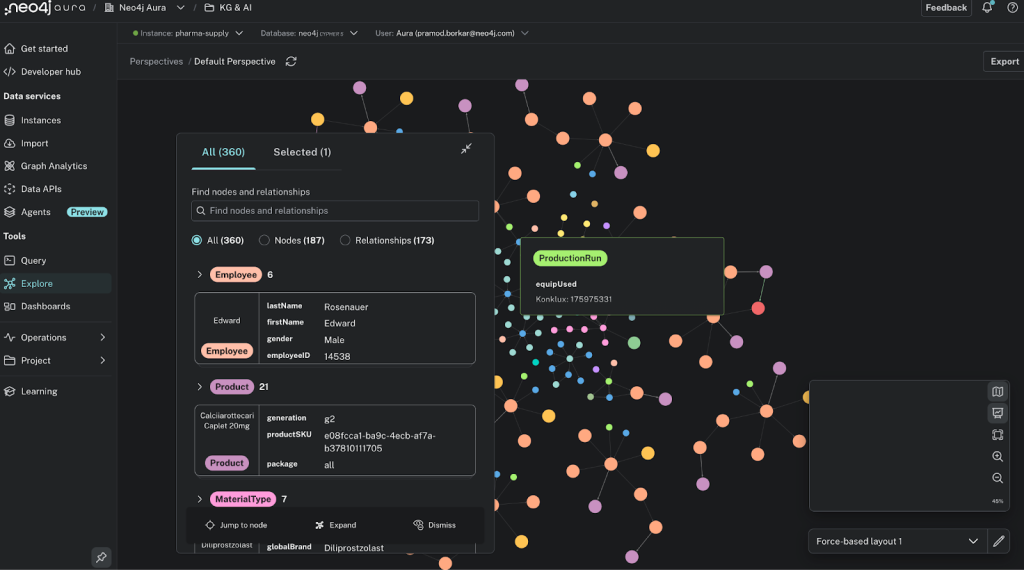
- Developers and business users benefit from built-in Aura tools such as Query, Explore, and Dashboards. These let them interact with data without needing full administrative access.
Convert Connections Into Fully Monitored Deployments
Don’t just add a connection for tool use—manage your deployment by changing it to a monitored one to get topology, insights, health metrics, version status, and operational controls. This visibility prevents configuration drift and helps teams respond quickly to outages or resource issues
Manage All Neo4j Databases, Not Just Enterprise Edition
Remember that Fleet Manager is not limited to Enterprise Edition—it manages all your Neo4j databases, including Community Edition and Desktop from v4.4+. You don’t even need to be a paying customer to use Fleet Manager—with just a single Community Edition deployment, you can create an Aura account for free, add the CE deployment to your account, and gain access to Fleet Manager console tools and applicable features.
Start Building Fleet Manager With Us
We’re building Fleet Manager with our customers, and we can’t wait to hear your feedback—you can submit it right in the Aura console. The first release will focus on foundational visibility and management, including:
- Database instance registration: Securely register self-managed databases.
- Topology and status view: See your fleet’s health and configuration in one place.
- Metrics: View key performance metrics about your cloud, self-managed Enterprise and hybrid deployments.
- Configuration, plugin, and license details: See a summary of the configuration, installed plugins, and license status of your cloud, self-managed, and hybrid deployments.
We hope you dive in and help us shape the future of unified Neo4j management—while making your fleet operations simpler, safer, and smarter.
Fleet Manager is included as part of the Aura console. If you don’t have an Aura account, you can sign up for a free account and add a Fleet Manager instance.
Share Article


Explore
Related Articles


Finding Hidden Bottlenecks in Flight Networks with Aura Graph Analytics on Databricks

Find Impactful Graph-Powered Insights in Databricks
Hey LLM, you’re using OPTIONAL MATCH wrong. Here’s the Cypher that actually works.

Finding the Fastest Way Out: How Dijkstra’s Algorithm Finds Shortest Paths