Get Started with Neo4j and Java
In this tutorial we will step through building an application in Java that highlights the capabilities and powers of what a graph database can help Java developers achieve.
Before we jump straight to code, though, let’s briefly cover why a Java developer might want to choose a graph database.

Why would a Java developer choose a graph?
As with most technologies today, graphs arose to solve a business and technical problem that the current technologies either made cumbersome or impossible to solve. The property graph data model uses mathematical vertices and edges to represent the entities and relationships in a data domain, making its visual nature easy to express through a whiteboard drawing.
As Java developers, there are many different options for building applications that interact with different data stores, such as relational, NoSQL, or graph. So why would (or should) a developer care or make a specific choice toward graphs?
First, graphs can help solve complex problems that other databases are not optimized to solve. For example, comparing trees of changes between library or language versions (such as Java version 17 and 21) or reviewing the history of how a specific feature has morphed throughout releases (such as date/time functionality). While these questions are possible to answer in other types of databases, their structure is not designed to be as performant in these types of scenarios – they are optimized to solve other problems at greater speed. Graphs are designed to answer these types of queries quickly and effectively.
Second, we can align the data domain more closely to the application domain because graphs naturally represent data as it exists in the real world, and Java maps data similarly. Java organizes data as a domain entity that serves as a general outline for objects of that type. Domain classes are made up of property variables that contain details about that entity (i.e., properties for name, date, title, etc) and constructors that serve as instances of that object type. Relationships are variables that point to another object, linking entities together. This natural alignment between a Java application and a graph database model reduces the amount of alterations needed to “make a use case fit” within technology restrictions.
Graph and Java offer a powerful combination that makes it easier for developers to design, code, deploy, and maintain technical systems.
Creating a project
Now that we have provided some background, let’s code an application to see this in action.
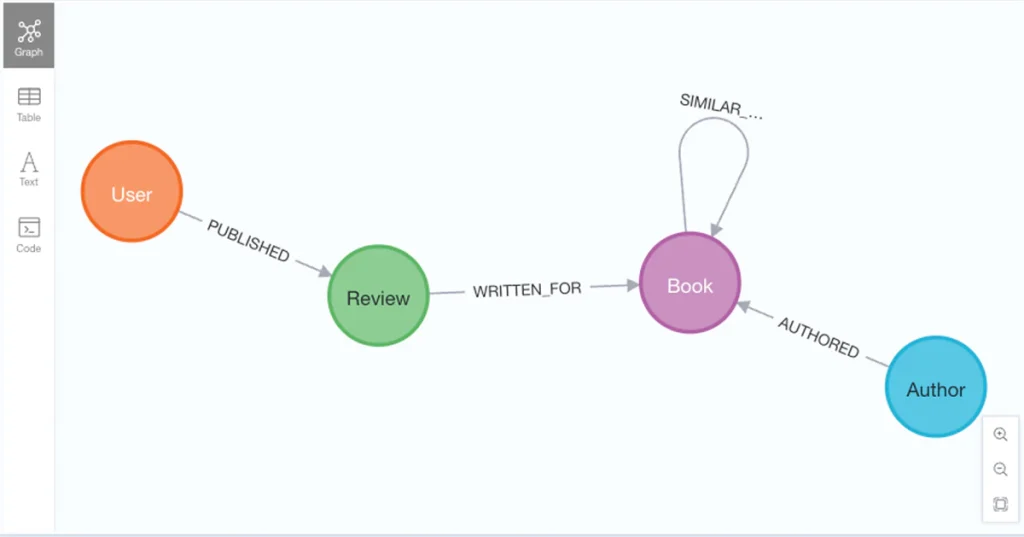
A few things need to be set up before writing the core Java code. The first is a Neo4j database. There are a few options for this, but Neo4j has a few demo databases available to the public with various datasets. This tutorial will use the goodreads demo database, which you can access via a web browser at https://demo.neo4jlabs.com:7473/browser/. Credentials to connect the database in the application will be given in a minute. The data was originally sourced from the https://mengtingwan.github.io/data/goodreads.html[UCSD Book Graph project^] and contains information about books, authors, as well as related reviews and the users who wrote them.
On the other hand, if you wish to spin up your own instance and data, the easiest is to start a free instance of Neo4j Aura, which is a database-as-a-service. It is entirely hosted by Neo4j in the cloud, so there is no administrative or maintenance worry. You just need to sign up for an account at console.neo4j.io and step through the prompts to create and start an instance (note: be sure to either download the credentials file or save the credentials somewhere you can reference them, as they will not be displayed again).
In the demo goodreads browser, you can verify the data in the database by running the following query in the query editor command line.
CALL db.schema.visualization();
Next, we need to set up our application project template. There are also many ways to create a Java project, but this tutorial will walk through an example without using a framework and only incorporate Maven to manage dependencies. Please ensure you have Maven installed, navigate to a directory where you want to create the project on your machine, and then run the command shown below to create a project.
mvn archetype:generate -DgroupId=com.neo4j.app -DartifactId=neo4j-java-tutorial
-DarchetypeArtifactId=maven-archetype-quickstart -DarchetypeVersion=1.5
-DinteractiveMode=false
You can optionally tweak the group and artifactId if you want to customize more, but make note of any changes, as those might alter later commands. Once the project is created, open it in your favorite IDE (e.g. VSCode or IntelliJ IDEA are excellent options if you don’t yet have a favorite). All the completed code for today’s demo is available in the related Github repository.
Neo4j Java driver
The first bit of code to write is to add the dependency for the Neo4j Java driver. Open the pom.xml file and add the following code block within the <dependencies></dependencies> section.
<dependency>
      <groupId>org.neo4j.driver</groupId>
      <artifactId>neo4j-java-driver</artifactId>
      <version>5.28.5</version>
</dependency>Code language: Java (java)
*Note:* Use the 5.28.5+ version of the Java driver, as versions prior to this one do not include object mapping.
Next, you need a few properties to connect to our Neo4j database. While there are lots of naming and location options for the properties file, please create a resources folder in the src/main/ directory, and then create a file called application.properties. Next, open the application.properties file and add properties and values as shown below.
NEO4J_URI=neo4j+s://demo.neo4jlabs.com
NEO4J_USERNAME=goodreads
NEO4J_PASSWORD=goodreads
NEO4J_DATABASE=goodreadsCode language: JavaScript (javascript)
Now you can start coding the data domain into the application, starting with the Book entity.
Java domain classes
Create a new file called Book.java under the src/main/java/com/neo4j/app. Note: change the class definition to record (rather than class). Next, add a few field variables to match the example below.
import java.util.List;

public record Book(String book_id,
                   String title,
                   String isbn,
                   String isbn13,
                   String url,
                   String publisher,
                   Double average_rating,
                   List<Author> authors) {
}Code language: Java (java)
The entity is defined as a Java record, which makes the object immutable. Within the class, properties of the book entity are defined as fields, such as title, publisher, and a list of authors.
Next, the Author class is undefined, so fix this by creating a file called Author.java in the src/main/java/com/neo4j/app and change its definition to record, as well.
public record Author(String author_id,
                     String name,
                     String average_rating) {
}Code language: Java (java)
This entity looks similar to the Book.java, except with author-related fields, such as name.
The next step is to connect to Neo4j, run a query, and return results that map to the Book and Author entities you defined.
Connecting to Neo4j
There are a few different ways to handle utility methods such as connecting to a database, but for this tutorial, create a new file called AppUtils.java in the src/main/java/com/neo4j/app.
This will abstract the boilerplate of connecting to Neo4j in a utility class and keep the main class a bit cleaner. Next, you can define a method to load the credential properties you defined in the application.properties file earlier, as well as a method to initialize an instance of the Neo4j Java driver.
import java.io.IOException;
import java.io.InputStream;
import org.neo4j.driver.AuthTokens;
import org.neo4j.driver.Driver;
import org.neo4j.driver.GraphDatabase;

public class AppUtils {
    public static void loadProperties() {
        try (InputStream input = AppUtils.class.getClassLoader().getResourceAsStream("application.properties")) {
            if (input == null) {
                throw new ApplicationPropertiesNotFound("application.properties file not found");
            }
            System.getProperties().load(input);
        } catch (IOException ex) {
            throw new RuntimeException("Error loading application.properties", ex);
        }
    }

    public static Driver initDriver() {
        return GraphDatabase.driver(
                System.getProperty("NEO4J_URI"),
                AuthTokens.basic(
                    System.getProperty("NEO4J_USERNAME"),
                    System.getProperty("NEO4J_PASSWORD"))
        );
    }

    public static class ApplicationPropertiesNotFound extends RuntimeException {
        public ApplicationPropertiesNotFound(String message) {
            super(message);
        }
    }
}Code language: Java (java)
This class creates a method to load the application properties from the /resources/application.properties file, throwing an error if it cannot find the file (ApplicationPropertiesNotFound) or if it cannot load it (catch IOException). When the next method (`initDRiver()`) is called, it will create an instance of the Neo4j Java driver to send data to and return data from Neo4j.
With the utilities in place, the next piece of code will be in the core App.java class.
Run a query in Neo4j
Open the App.java class in the src/main/java/com/neo4j/app directory and add the code within the main class shown below.
public class App {
    public static void main(String[] args) {
        AppUtils.loadProperties();

        try (var driver = AppUtils.initDriver()) {
            driver.verifyConnectivity();

	//code to query Neo4j + return results
        } catch (Exception e) {
            e.printStackTrace();
        }
    }
}Code language: Java (java)
The main method first needs to load the application properties, so that it can access the environment variables to connect to the Neo4j database. The next code block is a try catch that creates an instance of the driver to connect to Neo4j and verifies that it can connect successfully, catching any errors.
In the next section, we will add code for running the query in Neo4j and returning the results.
Execute query
To run a query in Neo4j, you use the .executableQuery().execute() method chain, passing a query to the executableQuery method. The results will need to be mapped to the Book.class, so that is done by streaming the records from the results, mapping each to the domain object, and converting each to a list.
public class App {
    public static void main(String[] args) {
        AppUtils.loadProperties();

        try (var driver = AppUtils.initDriver()) {
            driver.verifyConnectivity();

	var results = driver.executableQuery("""
                MATCH (b:Book)<-[rel:AUTHORED]-(a:Author)
                WITH b, collect(a{.*}) as authorList
                RETURN b {
                    .*,
                    authors: authorList
                } AS book
                LIMIT 10;
                """).execute()
                .records()
                .stream()
                .map(record -> record.get("book").as(Book.class))
                .toList();

            for (var book : results) {
                System.out.println(book);
            }

        } catch (Exception e) {
            e.printStackTrace();
        }
    }
}Code language: Java (java)
The new variable results will hold the query results, so we call the driver.executableQuery() and pass in the query string we want to run to retrieve books from Neo4j. The query looks for the pattern (Book)<-[AUTHORED]-(Author) and then returns the results as a map with authors nested inside the book object, rather than separate nodes and relationships.
This is because the Java driver object mapping does not automatically map, so we need to return the results in the same format as our domain entities. Because authors are nested inside the Book domain class, the database results should be formatted that way as well. Even though the book and author entities contain more properties in the database, only those that match those defined in our domain classes will be mapped back.
After the .execute() to run the query, the next lines call methods to retrieve the Record map, then stream those and map each record object’s book field to the domain Book.class, then put those into a list (.toList()).
The for loop in the next block takes each book in the list and prints it to the console.
Next steps
If you want to retrieve different “views” or pieces of the graph, you can create new domain classes (think of these like entity views or projections) and map results from Neo4j into that object format. You can also create more dynamic queries with parameters, incorporate a favorite framework into the application, or create a REST API.
To continue learning about Neo4j and Java, check out the Using Neo4j with Java course on Neo4j GraphAcademy! There are also a variety of other free, online courses available on GraphAcademy for topics such as Neo4j Fundamentals, Cypher, and Spring Data Neo4j.
Resources
- Code: repository for this tutorial
- GraphAcademy course: Using Neo4j with Java
- Neo4j database: Aura: free instance
Share Article