Since we announced the general availability of Neo4j Graph Intelligence for Microsoft Fabric in October 2025, we’ve been shipping features that make the end-to-end graph analytics workflow tighter across your team’s Fabric workflows. This blog takes you through all the developments over the last few months.
What’s new in 30s: Your graph results are now part of OneLake
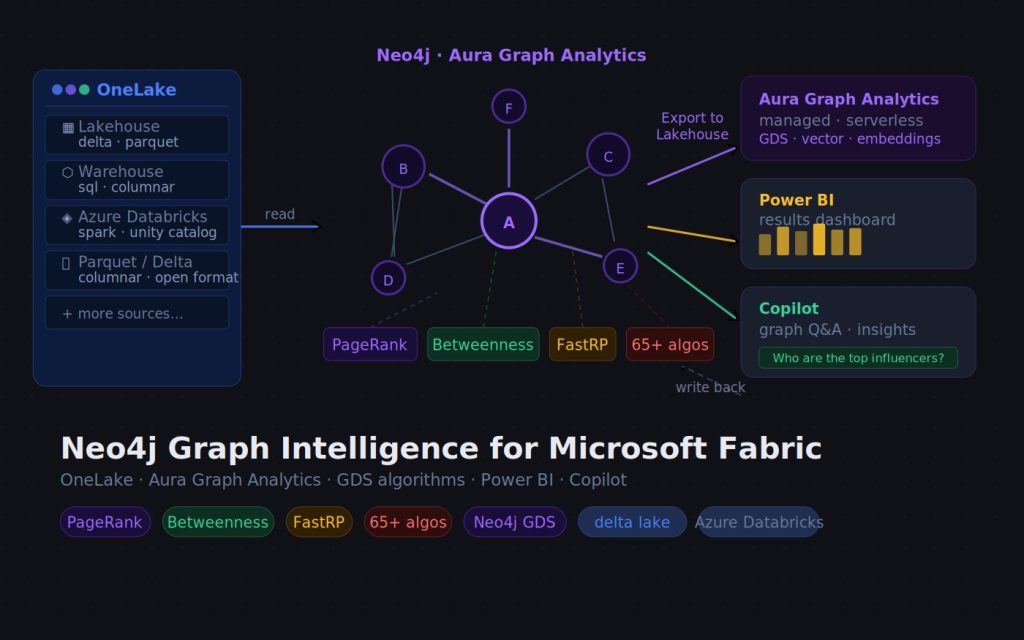
The game changer is the addition of Export to Lakehouse — the ability to sync the results of your graph analysis back into OneLake tables, where the rest of your Fabric tooling can pick them up. Whether you run PageRank or Betweenness to find influential products, the most likely bottlenecks in supply chains, or detect fraudulent communities with Louvain, these graph-based insights can be replicated back to the source tables or create fresh result tables.
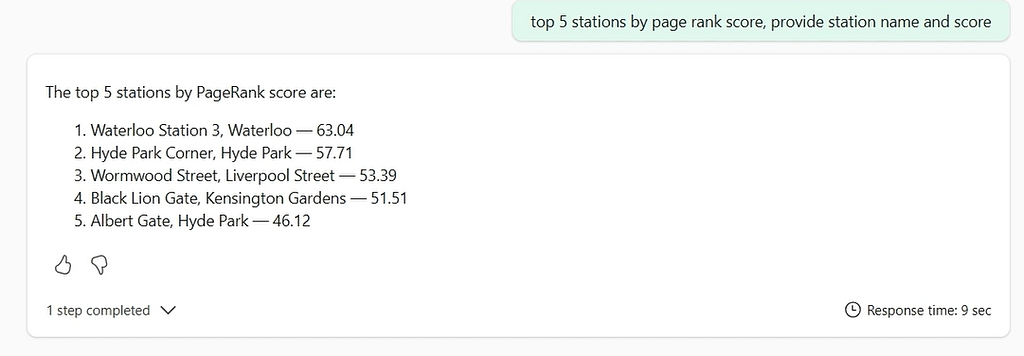
Once the results land in Lakehouse, you can query them with natural language via Microsoft Copilot through Data Agents, or pull them into Power BI charts alongside your other dashboards to drive business decisions. Graph analytics is a genuine part of your data platform.
The other updates include support for creating graphs on our Business Critical tier, and existing customers who already have graphs in Aura can now connect those graphs to Fabric for the same great embedded experience.
To improve the trial experience, we have added email notifications when the transformation is complete and a ‘Preview’ mode, enabling you to view the graph while it is being created. Query has become the new default view. For folk who don’t have access to a dataset during the trial, we have provided a ‘Sample dataset’ in the ‘New Item’ flow, which lets you to create a Lakehouse, load data into it, and then create a graph.
Read on for more details, or skip to the Neo4j Graph Intelligence in the Fabric Workload Hub.
Export graph results back to Lakehouse
After you’ve run graph algorithms and enriched your nodes and relationships with new properties, the Export tab lets you send those results back to your Lakehouse.
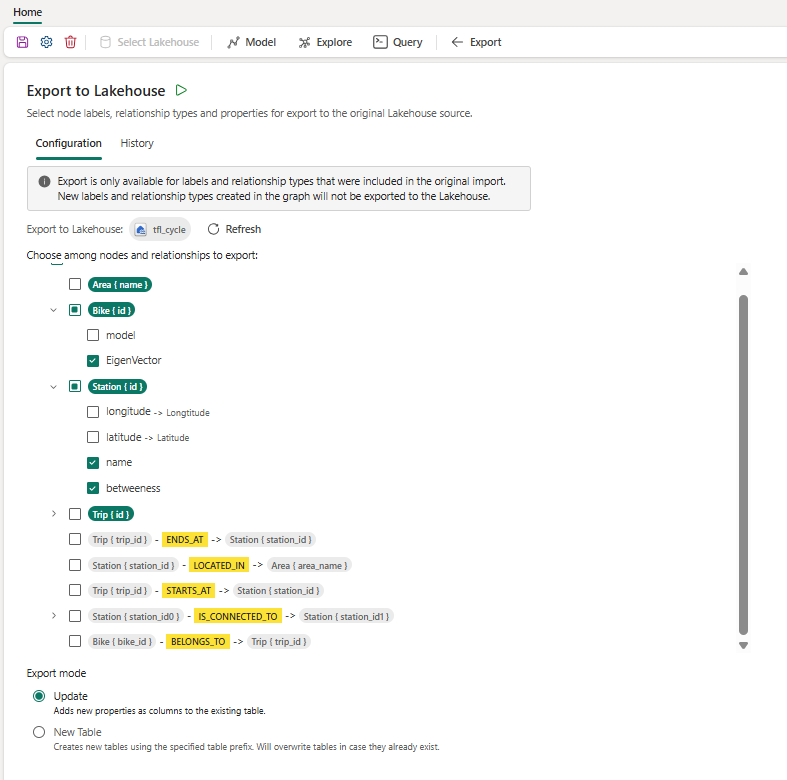
Availability: Export is available for Graph Datasets created from Fabric Lakehouse tables. It is not available for Graph Datasets created by connecting an existing Aura database to Fabric.
What gets exported: The import model you used to transform your Lakehouse tables into a graph governs which node labels and relationship types appear in the Export configuration. There are no restrictions on the properties of those nodes and relationships you can export, including new nodes and relationships created via Cypher.
Configuring an export job
- Open your Neo4j Graph Dataset in your Fabric workspace.
- Navigate to Export in the top navigation bar.
- In the Configuration tab, select the nodes, relationships, and properties to include.
- Choose an export mode (see below).
- Save the graph dataset using the save icon.
- Click the green play button to submit the job.
Export jobs run on your Fabric capacity’s worker queue. Job status is visible in the History tab, with a link through to the full Monitor page for more detail.
Export modes
Update mode — updates your original source tables in place. This mode requires that your graph model has one-to-one mappings from Lakehouse tables to their respective node and relationship types (i.e. the default mapping created during import, without merging or splitting tables).
What changed in the graph, and what happens in Lakehouse
- New property added to a node/relationship = New column added to the existing table.
- New node or relationship created = New row added to the existing table
- Existing property value changed = Existing cell updated in place
- Node or relationship deleted = Not removed from the Lakehouse table
New Table mode — writes exported data to new Lakehouse tables using a prefix you specify. Useful when you want to keep raw source tables untouched and store graph-enriched results separately. If your Lakehouse supports schemas, you can also target a specific schema. Be careful with your prefix choice: any existing table with the same name and prefix will be overwritten.
Full documentation is here.
What can you do with the results
Once graph-enriched data is back in Lakehouse:
- Query with Copilot via Microsoft Data Agents — ask natural language questions over your enriched tables without writing a line of SQL or Cypher.
- Visualise in Power BI — build charts that combine graph metrics (PageRank scores, community IDs, centrality measures) with your existing operational data.
- Downstream pipelines — use the data to make decisions in your downstream data pipelines.
Business Critical tier support
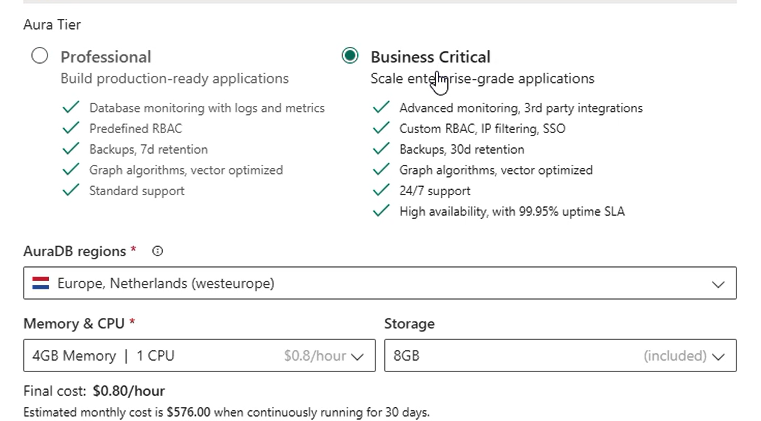
You can now create Graph Datasets backed by AuraDB Business Critical instances. This provides access to larger datasets, higher SLAs for scaling apps for Enterprise use, and is ideal for teams that have outgrown Professional. Find out more about what Business Critical has to offer here.
Connect to existing databases
For Aura customers who have already created Professional and Business Critical databases, you can now connect them to Microsoft Fabric so you can benefit from the same great integrated Query and Explore experience.
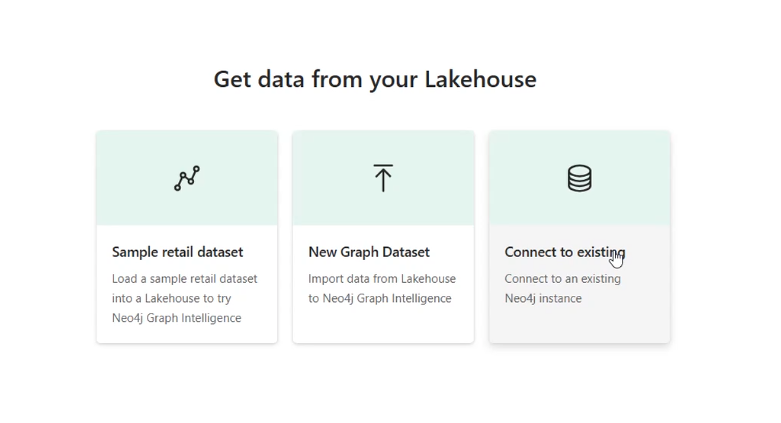
Please note that Export is not available for these graph items.
Preview and query while the graph loads
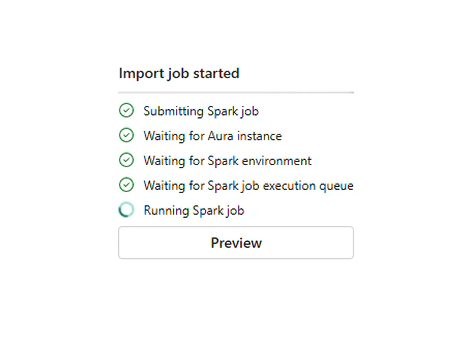
Previously, you had to wait for the full import Spark job to complete and receive the notification email before you could start exploring. Now, Preview mode lets you click through into the graph and start querying the data with Cypher. This is especially useful for large imports, and you may want to get a feel for the data before the job finishes.
Query is now the default view
When you transform Lakehouse data to a graph, Query is now the landing experience rather than Explore. This reflects how most users engage with the workload once they’ve got a feel for the graph — writing Cypher, running algorithms, and iterating on results. Explore remains a click away for visual inspection and no-code algorithm execution.
Improved sample dataset flow:
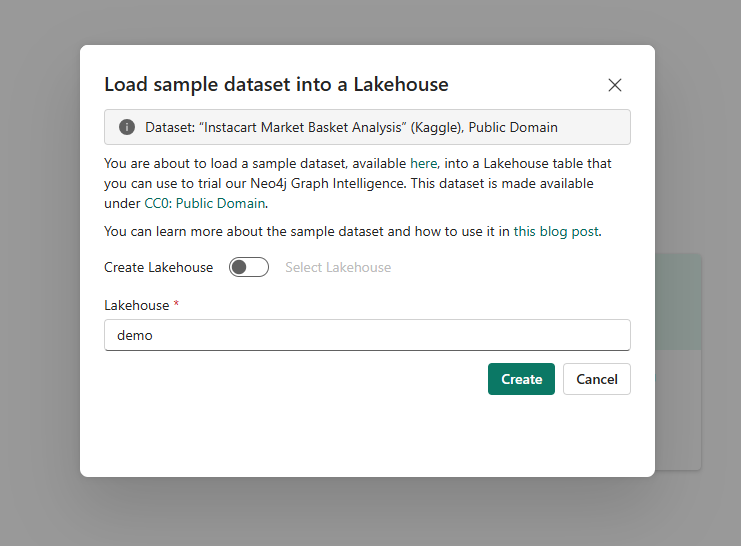
The Load Sample Dataset flow within the New Graph Item is there for trial users who don’t have immediate access to data. The flow now lets you create a new Lakehouse for the sample data (assuming you have the necessary permissions). Previously, you needed an existing Lakehouse before you could load sample data.
Getting started
If you’re new to Neo4j Graph Intelligence for Microsoft Fabric, the GA announcement post is the best place to start — it covers the full architecture, the three analytics surfaces (Explore, Query, and Notebooks), and the core graph algorithms available out of the box.
For this release specifically:
- Export to Lakehouse documentation
- Copilot Data Agents demo video
- Full documentation
- Neo4j Graph Intelligence in the Fabric Workload Hub
Questions or feedback? Find us on the Neo4j Community Forum or ask on Aura’s feedback page here.
What’s new in Neo4j Graph Intelligence for Microsoft Fabric was originally published in Neo4j Developer Blog on Medium, where people are continuing the conversation by highlighting and responding to this story.
Share Article



Explore
Related Articles
Your AI Agent Forgets Everything. So We Taught It to Remember — With a Graph.
Grounding Salesforce Agentforce with Neo4j — multi-agent setup over MCP

Cut Text2SQL token costs up to 81%, and stop paying for wrong answers: a Neo4j semantic layer across BigQuery and Databricks