Project management
A project in Desktop is a folder where you can group instances.
When you open Desktop for the first time, you have two folders:
-
All instances - where any and all instances are listed at all times, including remote connections.
-
Unassigned - where any instances not belonging to a project are listed
You can either create a new instance with the Get started button or create a project first. See Instance management for more information about creating instances.
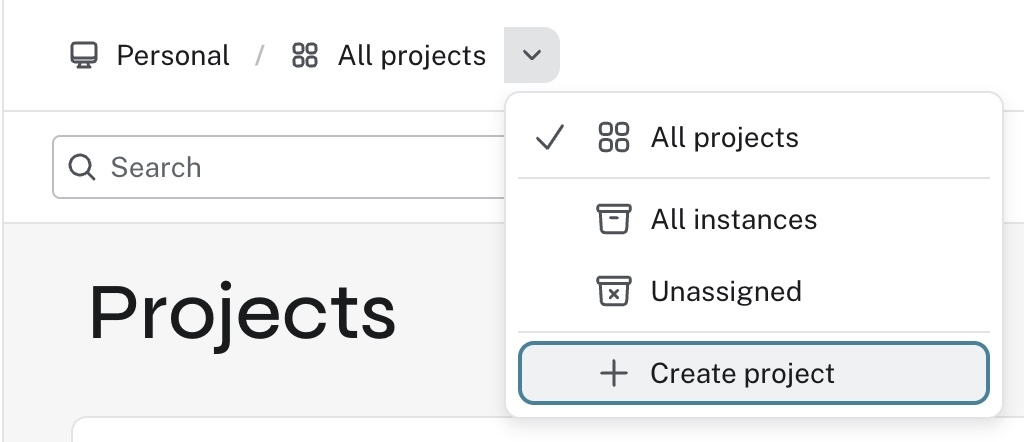
Regardless of whether you have created any instances or not, to create a project, use the dropdown in the top left:
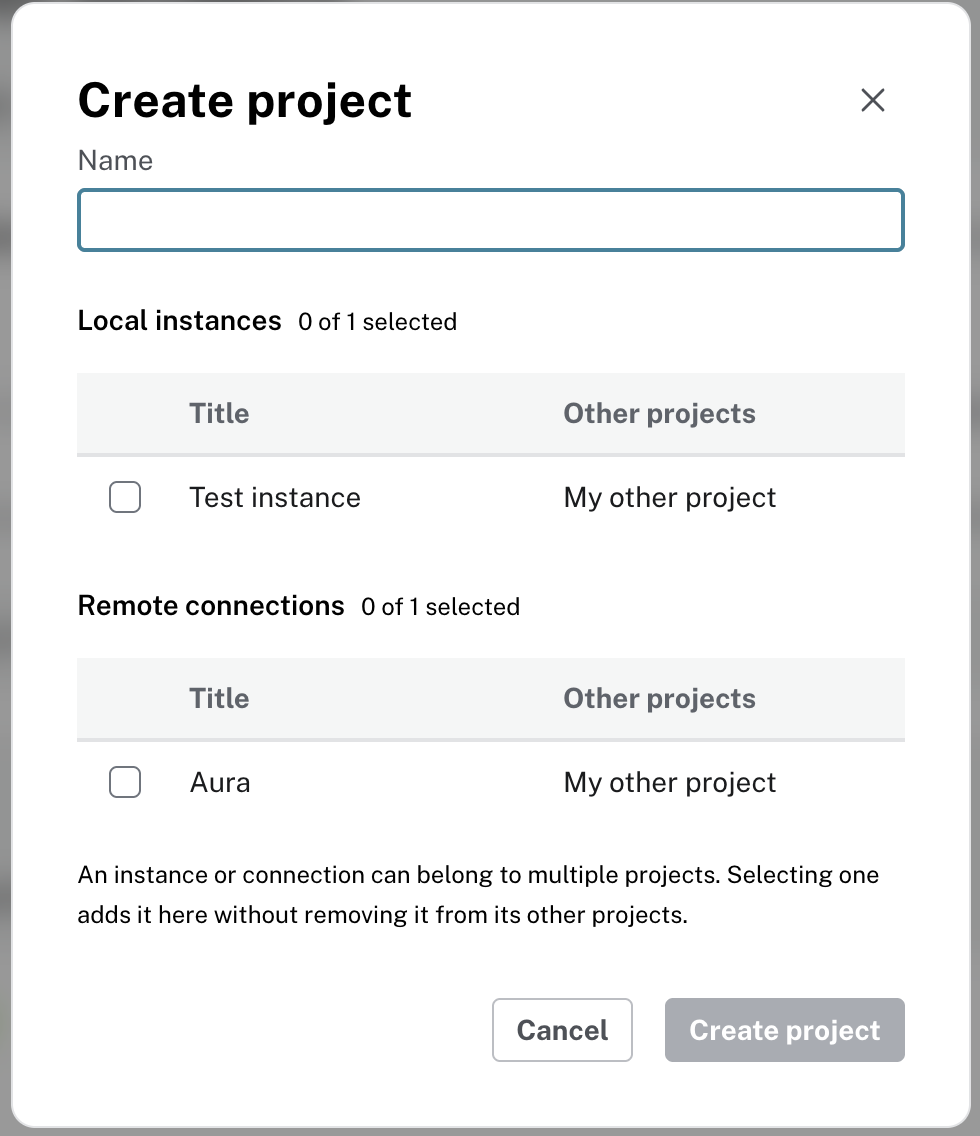
You need to give the project a name and if you already have created one or more instances, or if you have set up remote connections, you select which of them should belong to your project. Note that an instance can belong to more than one project, so selecting an instance does not remove it from any other project(s) it may belong to.
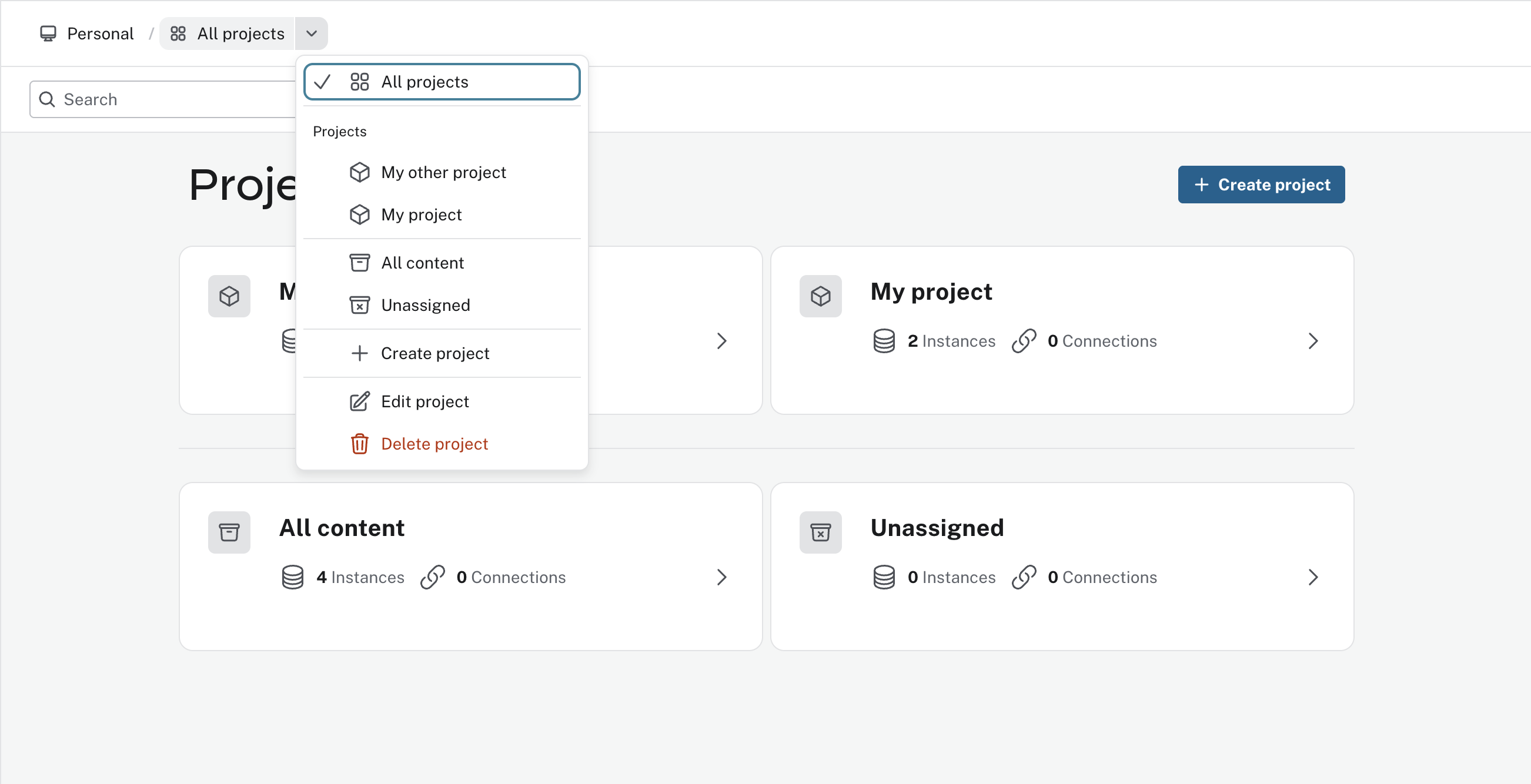
Select a project tile to open the project and see its instances. You can switch to another project at any time with the dropdown to the left on the top bar. From the same dropdown, you can edit and and delete your project. Note that deleting a project does not delete its instances. But if an instance does not belong to any other project when the project is deleted, it moves to the Unassigned folder.