Visual tourPreview
AuraDB Free AuraDB Professional AuraDB Business Critical
|
This feature is in preview and is offered AS-IS and should only be used for internal development purposes and not in production. |
When you navigate to Document Intelligence, you are presented with the Graph models tab and a list of your existing models, if you have any. The other two tabs available are Cloud data sources and Import jobs, where your existing data sources (if any) and previous imports (if any) are listed, respectively.
Most interactions take place in the Graph models tab.
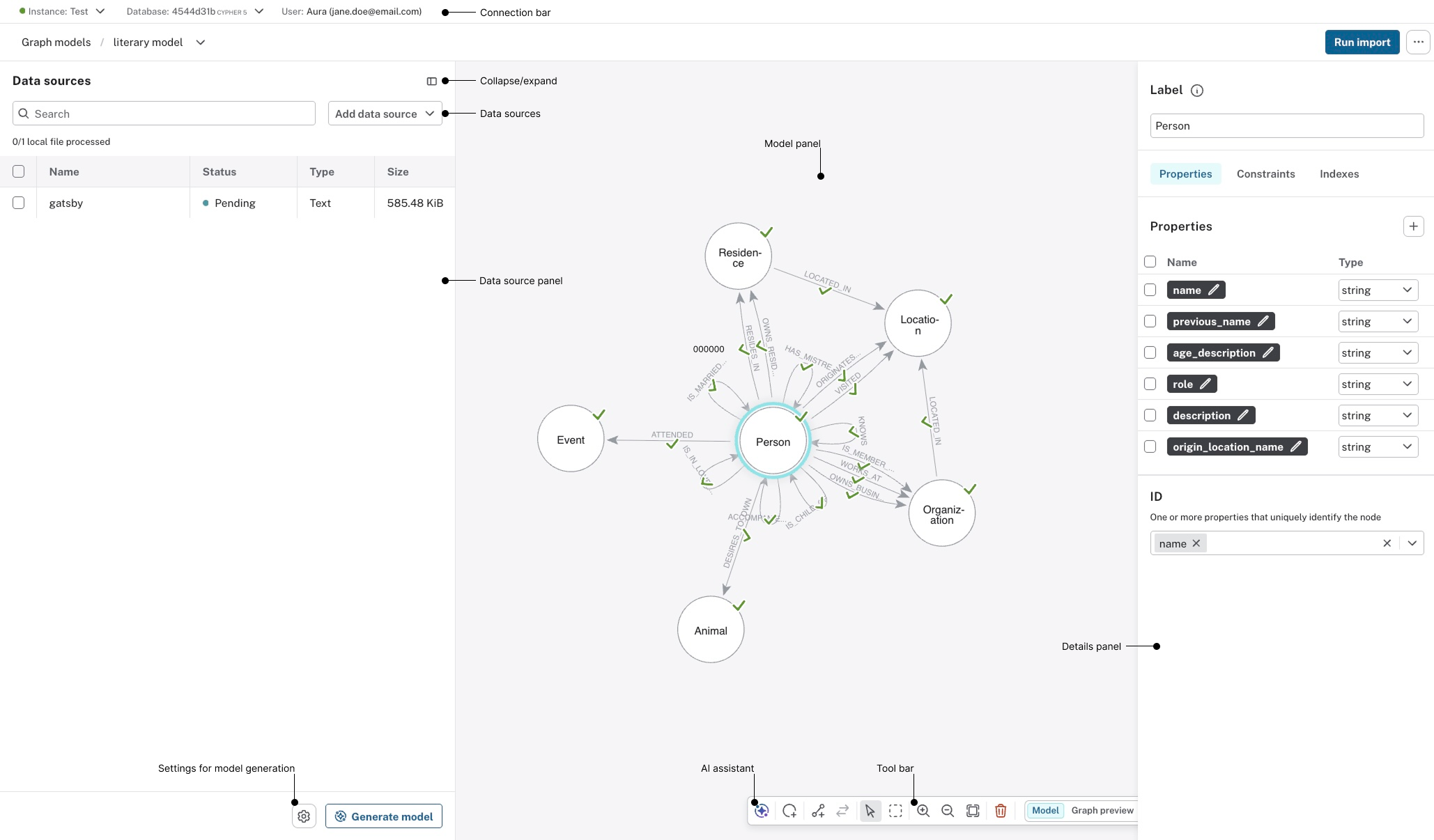
The graph model UI consists of three panels data source panel, model panel, and details panel. A connection bar shows instance, database, and user information.
The data source panel shows any connected data sources and contains options for adding more sources, adding a prompt (under the Settings button) for the model generation, and the Generate model button that starts the process.
The model panel contains the model (if generated) and on the bottom you find the Document Intelligence Agent and the tool bar where you can access other tools for manually interacting with the model.
The details panel is where you find, add, and edit details about the elements in the model. Constraints are created automatically, and they are listed here, so are corresponding indexes. New indexes can be created here as well.
Additionally, this is also where you start the import process by using the Run import button.
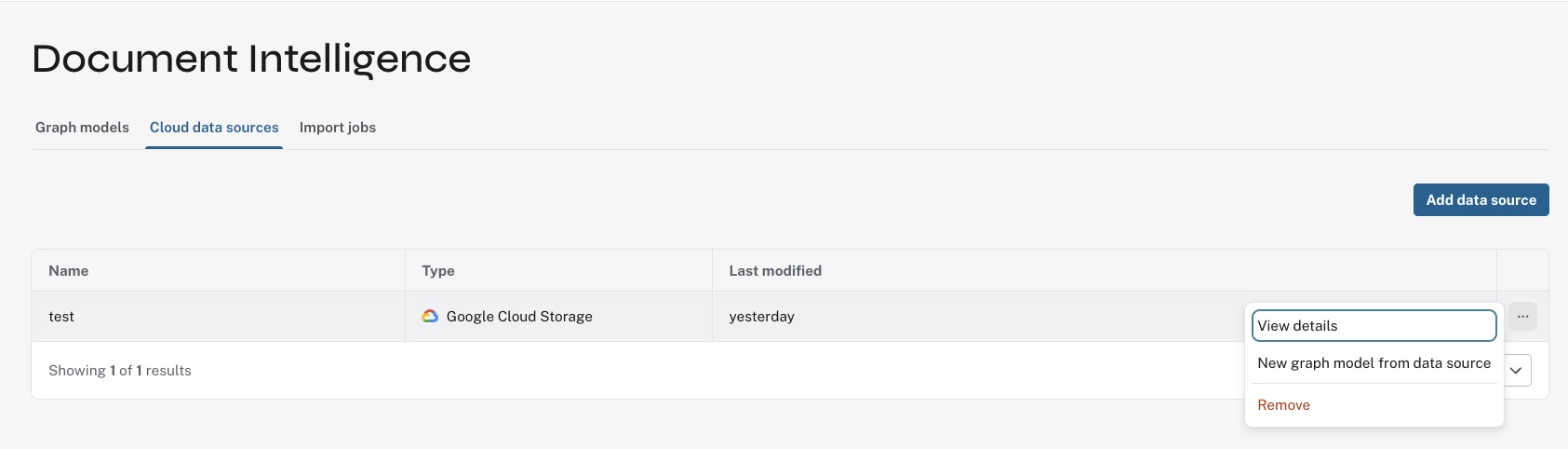
The Cloud data sources tab is where you go to add new data sources (except for local sources). Any sources already set up are listed here and the […] on each item in the list allows you to view details, take a shortcut to create a new data model, or delete the source.
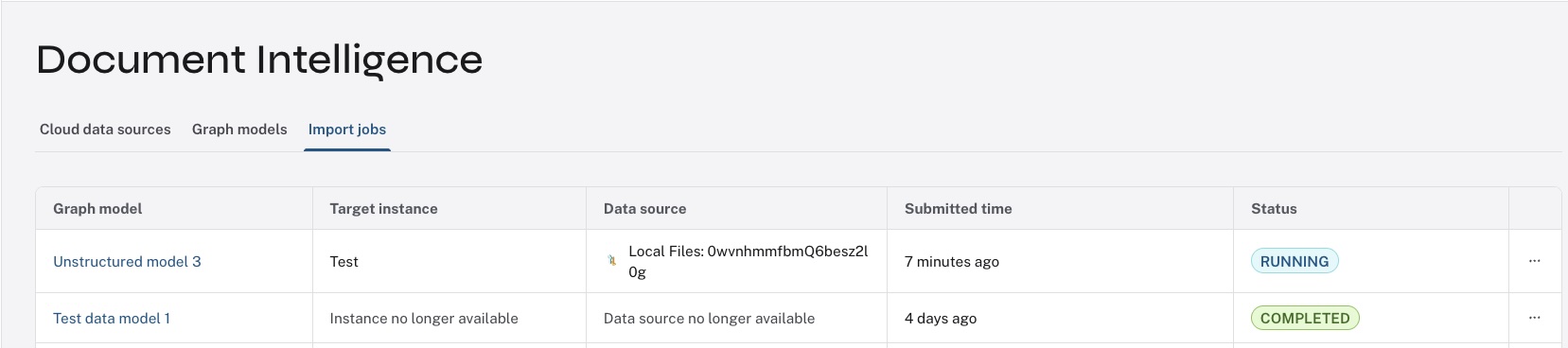
The last tab, Import jobs, contains a list of all current and past import jobs. The […] menu on each import job allows you to view more details about the import job.