Data provisionPreview
AuraDB Free AuraDB Professional AuraDB Business Critical
|
This feature is in preview and is offered AS-IS and should only be used for internal development purposes and not in production. |
You can connect to either a cloud data source or stream local files.
The following file formats are supported:
-
PDF
-
MD
-
DOCX
-
TXT
-
EPUB
Cloud data sources
To connect to a cloud storage, navigate to the Cloud data sources tab and use the Add data source button to add a new source. Once a source is added, it is listed in the table.
The following cloud storage options and authorization methods are supported:
-
AWS S3 - S3 key + secret
-
Azure Blobs & Data Lake Storage - Azure storage connection string
-
Google Cloud Storage - HMAC Access key + secret
Select the appropriate provider and enter your information.
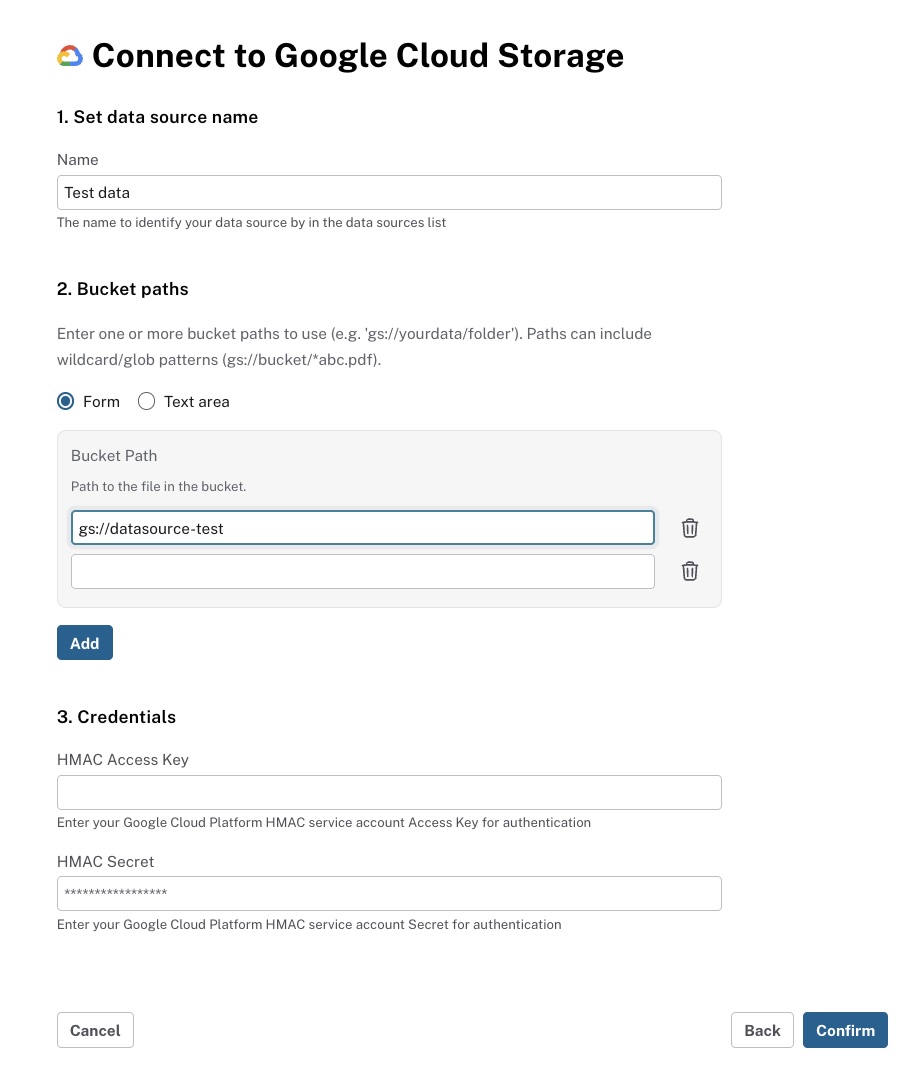
-
Name: Give the data source a unique name. This appears in the table of cloud data sources once added.
-
Bucket path: Enter the URI for your bucket. You can point to a specific file, add multiple paths, or use a wildcard (*).
-
Credentials: Enter your credentials for the selected cloud data source and then use Confirm to continue.
When the cloud source has been added successfully, you can opt to create a graph model right away via a dialog.
Stream local files
To add local files to Document Intelligence, you need to navigate to the Graph models tab. Use Create graph model to get started.
In the data source panel on the left, use the Add data source dropdown to select your local documents. You can add up to 20 documents.
When you provide local files, these are uploaded to a temporary cloud bucket. They remain there only until the import is complete. If you reload the page before running the import, you may need to provide them again.