Private Endpoints for Business Critical (Preview feature)
AuraDB Business Critical
|
This preview feature is governed by the Experimental Service Terms in your customer agreement with Neo4j. Updates about supported regions will be added to Canny. |
AuraDB Business Critical supports Private Endpoints, allowing authorised users to establish a private, secure connection for direct access traffic between VPCs; typically an application VPC and the VPC where Aura instances are running. This connection utilises AWS PrivateLink, which ensures that scoped traffic traverses the cloud provider backbone network and is not exposed to the public internet when properly configured.
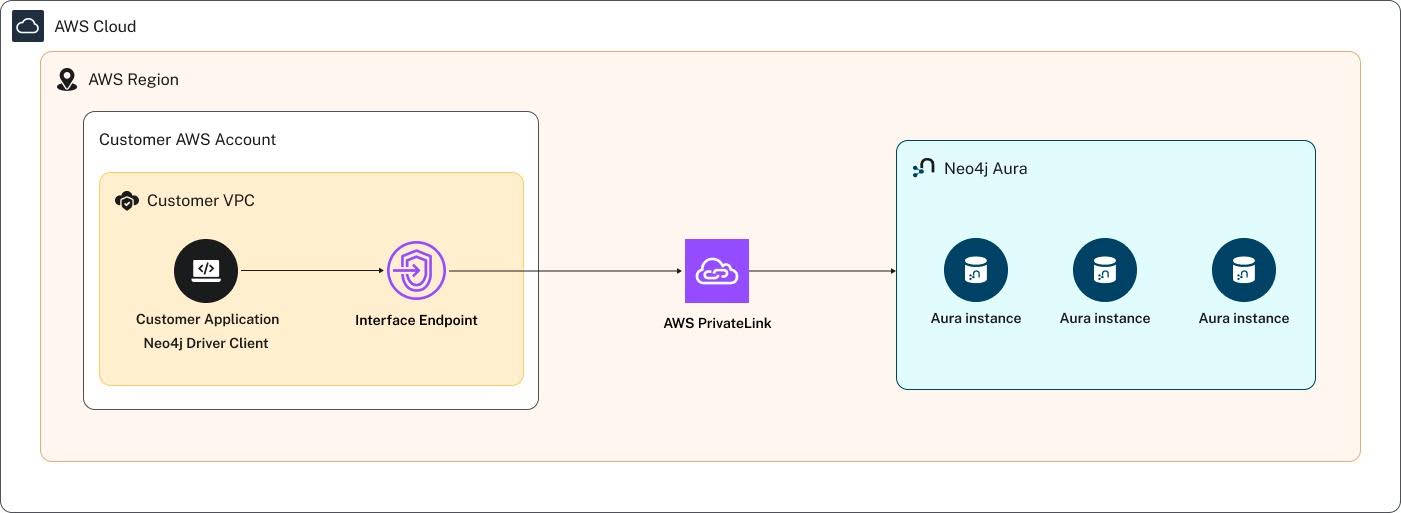
Business Critical & Virtual Dedicated Cloud differences
With AuraDB Business Critical, at the project-level you assign private endpoints to individual instances. It applies to the entire instance, including all databases in a multi-database instance, if applicable. Instances within the same project can therefore use different traffic configurations. This is a fundamental difference from the AuraDB Virtual Dedicated Cloud (VDC) feature where PrivateLink applies to every instance in the configured region.
Private connection URI
Instances using Private Endpoints in AuraDB Business Critical get assigned a separate, private connection URI in the following format. This provides a simple mechanism for ensuring that direct traffic is using the private connection.
<id>.<mode>.<feature>.<environment+region>.neo4j.io
1q2w3e4r.auradb.pe.s-eu-west-1.neo4j.io
Regions
Private endpoints are available only for AWS in the following regions for the launch of Public Preview. This will be expanded to include all regions where AuraDB Business Critical is available throughout the Preview.
-
eu-west-1(Ireland) -
eu-west-2(London) -
eu-west-3(Paris)
Quotas
-
Enable up to 10 private endpoints in each region per Aura project.
-
Enable private endpoints in up to 10 projects in each region across your Aura organization.
If this is not enough for your use case, please create a support ticket so we can assess your request.
Traffic modes
Creating or assigning a private endpoint does not interrupt your running instance. Public internet access stays enabled by default, so existing connections keep working until you explicitly disable it.
Each instance can use one of the following traffic modes for governing direct traffic routing:
-
Public: Connections use public access.
-
Hybrid: Direct connections can use public or private access. Indirect access tools remain available.
-
A private connection is available through the private URI.
-
A shield icon appears with the tooltip “Private connection with public access enabled”.
-
To allow connections only through the private endpoint, you must disable direct public access.
-
-
Private-only: Direct connections must use private access. Indirect access tools are out of scope.
Access types
It’s useful to differentiate two types of access to an Aura instance: direct access and indirect access.
Direct access
Tools with direct access use the database connection path secured by Private Endpoints. In private-only mode, direct connections must use the private endpoint and private URI as outlined above. The instance cannot be reached through its public URI, regardless of the credentials supplied.
Indirect access
Tools with indirect access are not within the scope of Private Endpoints. Their connection paths cannot be controlled through this feature. These tools connect using public access, encrypted with TLS 1.3, and can be secured with IP filtering where supported.
Private-only mode does not prevent indirect tools from attempting to connect. Depending on the tool, they may remain available or become unavailable. Do not use indirect-access tools if you need to ensure that all access to your instance uses private connectivity.
|
If you need to prevent all data access over the public internet, including both direct and indirect access, do not use the indirect tools listed in the following table. |
| Connection path | Access type | Traffic mode is user configurable |
|---|---|---|
Customer application (drivers/client libraries) |
Direct |
Yes |
Query |
Direct |
Yes |
Explore |
Direct |
Yes |
Dashboards |
Direct |
Yes |
Aura Graph Analytics (GDS) |
Indirect |
No |
GraphQL |
Indirect |
No |
Aura Agent |
Indirect |
No |
MCP |
Indirect |
No |
Push-to-cloud (upload to instance) |
Indirect |
No |
Data Importer (write-back to instance) [1] |
Indirect |
No |
1. The Data Importer also makes outbound connections to customer data sources (Databricks, Snowflake, S3 and similar) to pull data in for import. These connections don’t touch the Aura instance and sit outside the scope of this model entirely.
| ||
How to guide
Required roles
Setting up a private endpoint requires one of the following roles:
-
Organization Owner -
Organization Admin -
Project Admin
Prerequisites
-
Sign in to the Aura console and the AWS Management Console.
-
Ensure that the AWS VPC and the Aura instance you want to work with are in the same region.
Create a private endpoint
-
In the Aura console, select Project settings from the sidebar.
-
Select Security & Networking > Private Endpoints.
-
Select Create private endpoint.
-
Select an available AWS region.
-
Select Enable.
-
Wait for Aura to generate the Endpoint service name.
-
Copy the Endpoint service name.
Create a VPC endpoint
-
In the AWS Management Console, go to VPC and select Endpoints.
-
Select Create endpoint.
-
Enter a name tag for the endpoint.
-
For Type select PrivateLink Ready partner services.
-
For Service name, paste the Endpoint service name copied from Aura.
-
Select Verify Service. When verification succeeds, AWS displays Service name verified.
-
Under Network settings, select the VPC containing the resources that will connect to Aura (it should be the default option).
-
Under Additional settings for DNS record IP type keep the default option IPv4.
-
Under Subnets, select the required availability zones and private subnets. (You can assign 3 private subnets to availability zones for a 3 node Business Critical instance.)
-
For IP address types keep the default IPv4.
-
Under Security groups, assign a security group that grants your application traffic access to the endpoint in accordance with your network security policies.
-
Select Create endpoint. (This switches you to the Endpoint page and AWS displays “Successfully created VPC endpoint”)
-
Select the new VPC endpoint and copy its ID, for example,
vpce-012345abcdefg0123.
Connect the VPC endpoint to Aura
-
In the Aura console, select Add endpoint.
-
Paste the VPC endpoint ID copied from AWS, for example,
vpce-012345abcdefg0123. Enter a display name. -
Select Add endpoint and wait for Aura to verify the connection (this typically takes 30 - 60 seconds).
-
The VPC and endpoint name appear under Endpoints.
Assign the private endpoint to an instance
|
The instance must be in a ‘running’ state. You cannot edit its private endpoint configuration while another operation, such as resizing or cloning, is in progress. |
-
Select Configure instance routing.
-
In the Assign instances dialog, locate the AuraDB Business Critical instance.
-
For Assigned endpoints, select the private endpoint.
-
Keep Allow public traffic selected to maintain public access to the instance.
-
Select Save.
The instance now operates in hybrid mode, with public access still enabled.
Configure private DNS in Route 53
|
The example below illustrates how to configure DNS for a given region.
In this example, it’s set up in |
Aura instances assigned to a private endpoint receive a private URI that can be used to direct traffic over the private connection rather than public internet. In order to resolve the private URI, the VPC containing the private endpoint must have a DNS record pointing to the private endpoint.
Aura does not automate the setup of this record automatically through the endpoint so it must be set up manually by users who need to create the DNS entry in a Route 53 private hosted zone.
-
Ensure DNS resolution and DNS hostnames are enabled for your VPC.
-
To enable these, go to the AWS console> VPC > Your VPCs > select the VPC > select Actions > Edit VPC settings.
Find the endpoint’s IP addresses
-
In the AWS Management Console, go to VPC and select Endpoints.
-
Select your Aura VPC endpoint.
-
Open the Subnets tab.
-
Copy the IPv4 address for each subnet. There is one per subnet you selected, for example
10.0.1.47,10.0.2.244, and10.0.3.194.
Create the private hosted zone
-
In the AWS Management Console, go to Route 53 and select Hosted zones.
-
Select Create hosted zone.
-
For Domain name, enter the following
pe.s-eu-west-1.neo4j.io. -
For Type select Private hosted zone.
-
Under VPCs to associate with the hosted zone, select the AWS Region and the VPC that contains the endpoint.
-
Select Create hosted zone.
Add the DNS record
-
In the new hosted zone, select Create record. For Record name, enter the following
*.auradb.pe.s-eu-west-1.neo4j.io -
For Record type, select A.
-
For Value, enter the endpoint IP addresses you copied, one per line.
-
For TTL, use the default option e.g.
300 seconds. -
For Routing policy, keep Simple routing.
-
Select Create records.
Verify the DNS entry
-
From a host inside the VPC, run
nslookupwith the private URI. For example:nslookup 1q2w3e4r.auradb.pe.s-eu-west-1.neo4j.io. -
Confirm it returns the endpoint’s private IP addresses.
A private hosted zone only resolves inside the VPCs it’s associated with. If your applications run in more than one VPC, associate the zone with each VPC.
Test the private connection
To validate that tools and applications that are configured to use the private URI have access:
-
In the Aura console go to Instance details, copy the Private URI.
-
Take this Private URI and put it into a connection application string to force traffic over the private connection.
-
Connect to the instance using its private URI (for example, with an application driver).
-
Confirm that your applications and other direct connections configured with the private URI remain connected.
-
Test your usual database operations, including reading and writing data.
Disable public access
-
After testing the private connection, return to the Aura console and go to Project settings > Private Endpoints.
-
Select the settings cog for the private endpoint configuration in the relevant region.
-
Select Configure instance routing.
-
Disable Allow public traffic by unselecting the checkbox, then select Save.
After public access is disabled, an X appears next to Allow public traffic. Connections are then forced to use the private endpoint.