Scatter chart
Scatter charts show the relationship between two numeric values. Each data point represents a pair of values plotted on a horizontal x-axis and a vertical y-axis.
Use a scatter chart to identify patterns, gaps, and outliers in your data. Points grouped closely together may indicate a relationship between the values. A point far from the others may be an outlier.
Hover over a data point to see the values it represents. You can set a point label to help identify each data point.
Cypher example
Unit price vs number of orders
MATCH (o:Order)-[:ORDERS]->(p:Product)
RETURN
  p.unitPrice AS price,
  count(o) AS numberOfOrders,
  p.productName AS product
ORDER BY price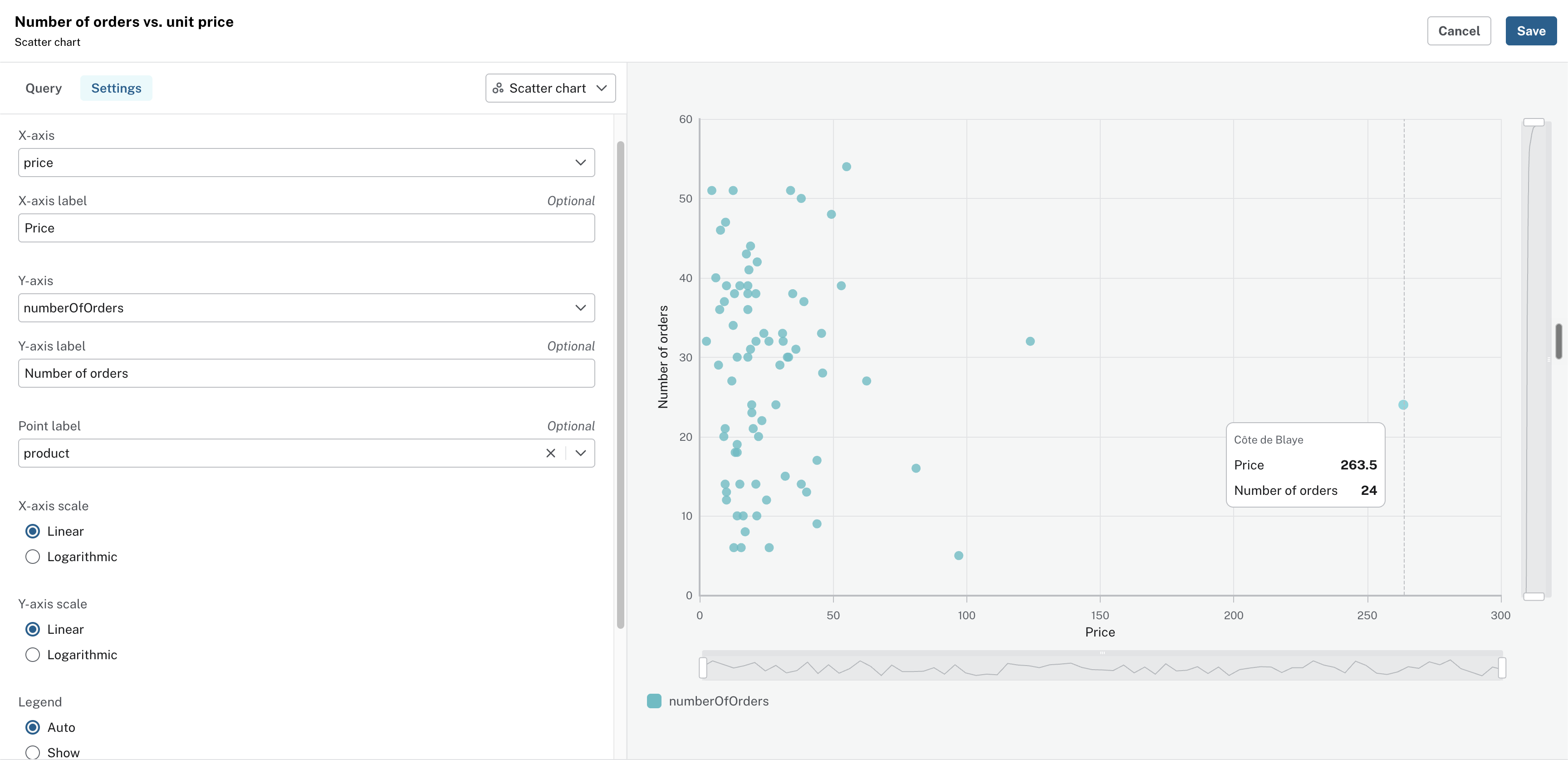
This example compares a product’s unit price with the number of orders that include it. It can help you explore whether higher-priced products appear in fewer orders. Hover over a data point to view the product name, price, and number of orders.
Configuration
Select numeric query results for the x-axis and y-axis. You can also set labels for each axis and a label for each data point.
For the example query, use the following fields:
-
X-axis:
price -
X-axis label:
Price -
Y-axis:
numberOfOrders -
Y-axis label:
Number of orders -
Point label:
product
For each axis, select a scale:
-
Linear: Equal gaps represent equal increases, such as 10, 20, 30, and 40. This is the default scale.
-
Logarithmic: Equal gaps represent values that increase by the same factor, such as 1, 10, 100, and 1,000. Use this scale when values span a wide range.
You can also choose whether to display the following controls:
-
Data zoom slider: Lets viewers select a smaller range of values to focus on part of the chart.
-
Auto: Uses the default display behaviour.
-
Show: Displays the sliders.
-
Hide: Does not display the sliders.
-
-
Legend: Identifies the data shown in the chart.
-
Auto: Uses the default display behaviour.
-
Show: Displays the legend.
-
Hide: Does not display the legend.
-
For this example, select Hide for the legend. The chart has one data series, so the legend repeats the y-axis label.