Single Sign-On (SSO)AuraDB Business CriticalAuraDB Virtual Dedicated CloudAuraDS Enterprise
Single Sign-On (SSO) enables organization owners and organization admins to use your organization’s identity provider (IdP) to authenticate users so they can access the Aura console and Aura instances.
Aura supports SSO authentication and authorization using Microsoft Entra and Okta as IdPs, implementing the OpenID Connect (OIDC) protocol.
As the service provider, Neo4j Aura redirects authentication requests to the configured IdP using the OpenID Connect (OIDC) protocol. Aura also supports authenticating with Google as the identity provider. When a user attempts to log in, Aura generates a redirect URL with authentication parameters and sends the user to the IdP for authentication. After successful authentication, the IdP redirects the user back to Aura with a secure token, allowing Aura to establish an authenticated session.
Required roles
The person setting up SSO needs an Organization Owner or Organization Admin role.
For information on how to assign roles see User management.
Login methods for Aura
Each Aura organization is configured with the following login methods that allow logging into the Aura Console (https://console.neo4j.io):
-
Email/password
-
Social Login
-
Google
-
Microsoft
-
Github
-
Additionally each organization can configure SSO.
An organization with SSO enabled as a login method for the Aura Console can deactivate the login methods listed above.
SSO levels
SSO can be applied on the organization level, which means that it is the login method to the console itself, this is referred to as Console SSO. Or, it can be applied on instances, either by project, or selected individually, known as Instance SSO.
Aura Console SSO
-
Authenticates users so they can log into the Neo4j Aura Console UI (console.neo4j.io). The user is logging into the Management Plane.
-
Enables users to log into the Aura Console via your Identity Provider (IdP) to manage the lifecycle of your instances.
-
It controls how team members log in to manage billing, view metrics, create or delete projects, and provision new databases.
-
Role management for projects, billing, and metrics is not currently handled via the IdP, and needs to be managed either via the UI or Aura API.
Instance SSO
-
Authenticates users or applications into individual Neo4j database instances (e.g., via Neo4j Browser, Bloom, or Drivers). The user is logging into the Data Plane.
-
Enables authentication for users or applications directly into specific Neo4j DBMS/instances (e.g., via Neo4j Browser, Bloom, or drivers) within an Aura Project.
-
It ensures that when someone connects to a database instance within a specific project, they authenticate against your Identity Provider (IdP). You can use IdP group-to-role mapping to assign RBAC database privileges (such as
admin,architect, orreader) based on their SSO groups. This optional setting in the configuration dialog is called role mapping.
SSO Administration
To simplify administration, you can use a Brokered SSO configuration for both the Aura Console and database instances by selecting the corresponding checkboxes during setup: "Use as login for the Organization" and "Use as login method for instances within Projects in this Organization". These settings serve as the default for all instances within a project. If you don’t check any of the boxes, you can still add the configuration and apply it to organizations, projects and/or instances later.
It is recommended to group instances to projects based on their shared SSO login requirement.
Instance SSO Overrides
Organization or project administrators can deviate from organization-wide defaults by applying overrides to individual instances. This is useful when a few instances require custom role mappings, while the organization-level configuration could remain empty. Currently, the fields available for override at the Instance level are Display Name and Role Mapping.
Display name
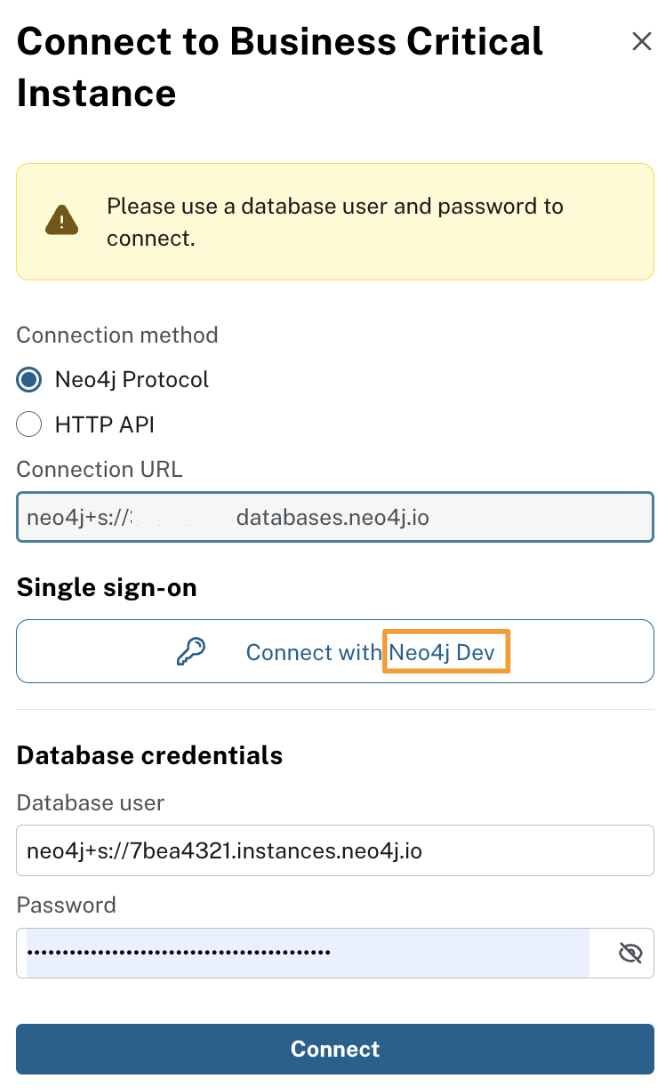
The Display Name is the label shown to users when they choose to login with SSO while connecting to an instance.
It only changes the name displayed in the Aura connection dialog shown when users connect to the instance (e.g. Neo4j Dev).
Legacy SSO Configurations
Historically, certain custom SSO configurations—such as Groups, Username, Scope, and Token parameters were managed via support tickets.
While these configurations were previously not visible in the organization settings page, they are now accessible and editable directly within the console.
Some legacy configurations may exist in an orphaned state.
It is recommended to create new configurations to utilize current SSO management capabilities where possible.
Setup requirements
Aura requires the Authorization Code Flow, an OAuth2 authentication method that involves redirecting users to a publicly accessible IdP server for login.
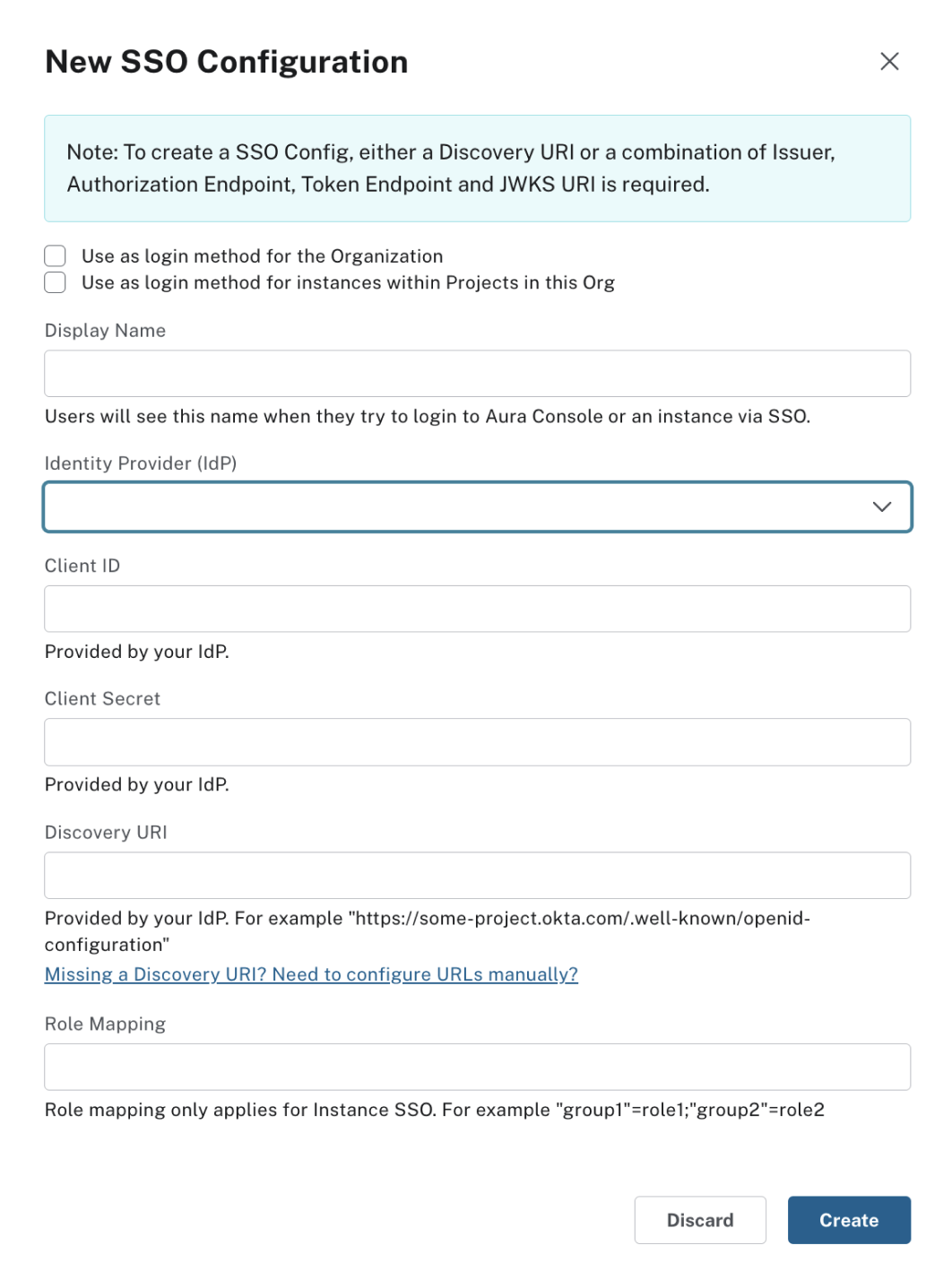
To create an SSO Configuration, either a Discovery URI or a combination of Issuer, Authorization Endpoint, Token Endpoint, and JWKS URI is required.
Create a new SSO configuration
-
Go to Organization settings > Security > Single Sign-On to set up a new SSO configuration.
-
Select a Connection method:
-
Brokered: Aura connects to your identity provider on your behalf. This method requires a client secret and can be used for Aura console (organization) and instance login.
-
Direct: Your instances connect to your identity provider directly, with no client secret. Only available for instance login. During login, the IdP returns an access token to the instance.
The connection method cannot be changed after you create the SSO configuration.
-
-
The checkboxes Use as a log in for the Organization and Use as login method for instances with projects in this Org define whether SSO should be only on organization-level, only on instance-level, or both.
-
The required basic SSO configuration information can be retrieved from the IdP. Entering the Discovery URI pre-fills the fields. If this is not known these fields can be completed manually.
-
If you have selected a Direct connection method, enter an Audience.
Custom configuration settings (optional)
In addition to the standard settings, you can optionally configure custom token settings. For more information, see Operations Manual → Configuration Settings
Most organizations can use the default values. Only modify these settings if required by your identity provider or authentication configuration.
|
If you use Attribute-Based Access Control (ABAC), Aura supports the following identity attributes: |
Example setup
If you want users to authenticate with SSO for both the Aura Console and your database instances, make sure to select both of the following checkboxes during setup:
-
Use as login for the organization
-
Use as login method for instances within projects in this organization
Log-in link
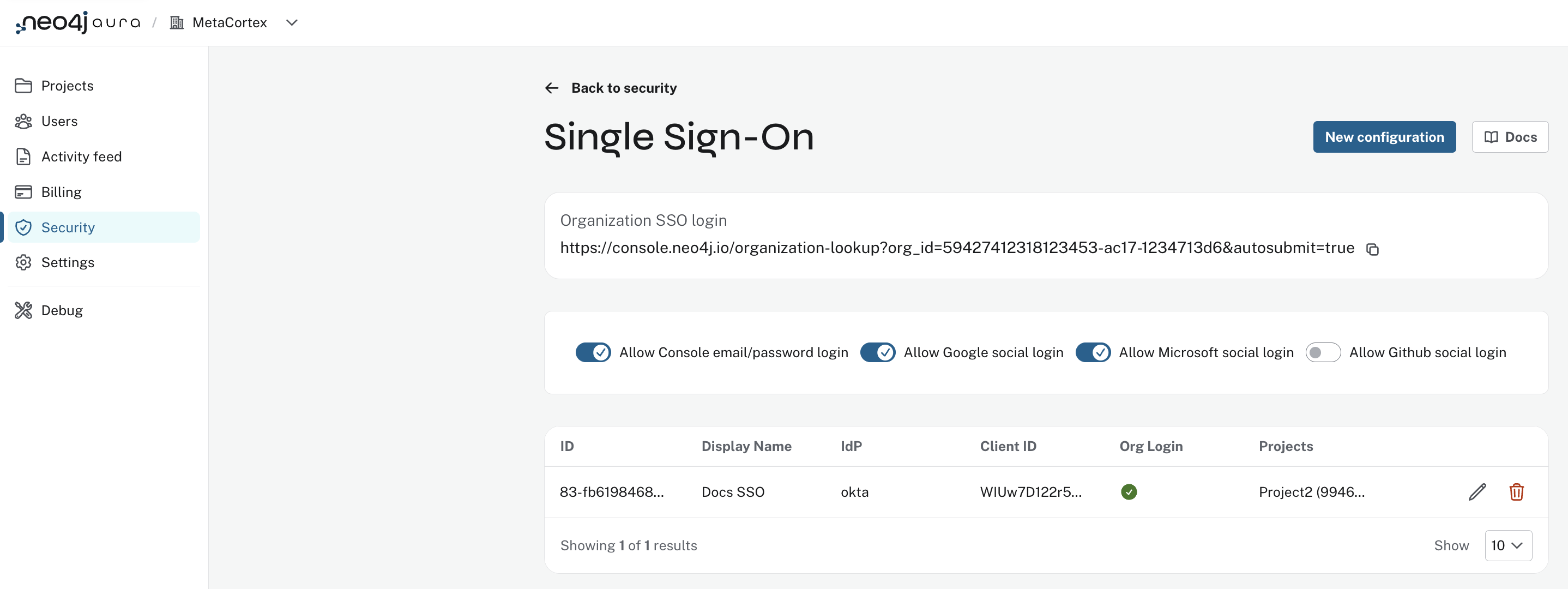
After setting up SSO, the Organization SSO login link can be found in the organization summary page in the Aura console.
Role mapping
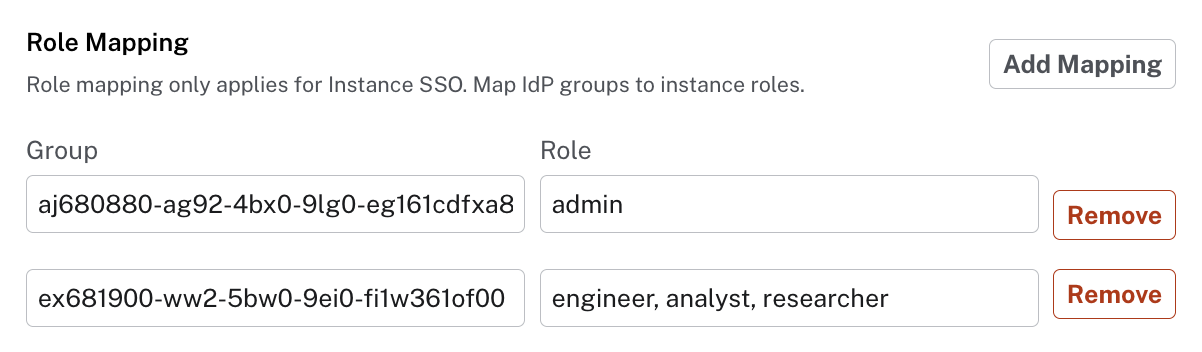
The SSO option for group to role mapping can map a group from an SSO provider to any role defined in the instance. If the same SSO configuration for multiple instances is used, that same mapping applies. This access then applies to all newly created instances the user has access to.
Multiple group to role mappings can be defined, and multiple roles can be given to any SSO group. The role field can be a comma separated list.
For Azure and Microsoft Entra ID use the Object ID of the group, not the group name. For OIDC use the group name.
By default, role mappings apply to all instances that inherit the SSO configuration.
Linking SSO to projects and instances
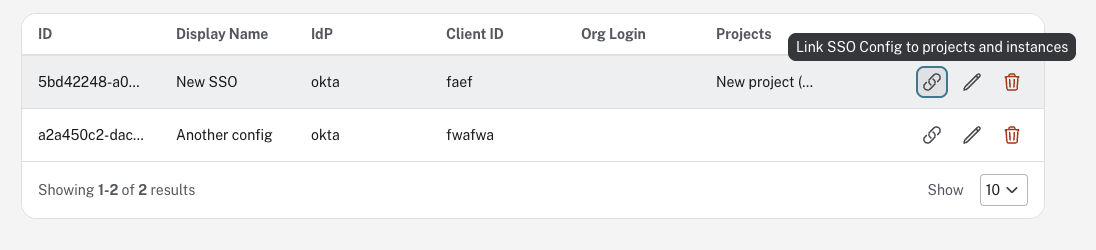
Once you have added an SSO configuration, you can use the link icon to link the configuration to a project and or individual instances. If you link a project, all new instances created within this project will require SSO login. If you link an individual instance, the SSO configuration will be applied to that instance immediately.
Updating SSO configurations
Changes made to an SSO configuration are automatically applied to running instances that inherit that configuration. So you do not need to reconfigure each instance individually. If multiple instances require the same configuration, place them in a separate project and configure SSO at the project-level.
Instance-level SSO overrides
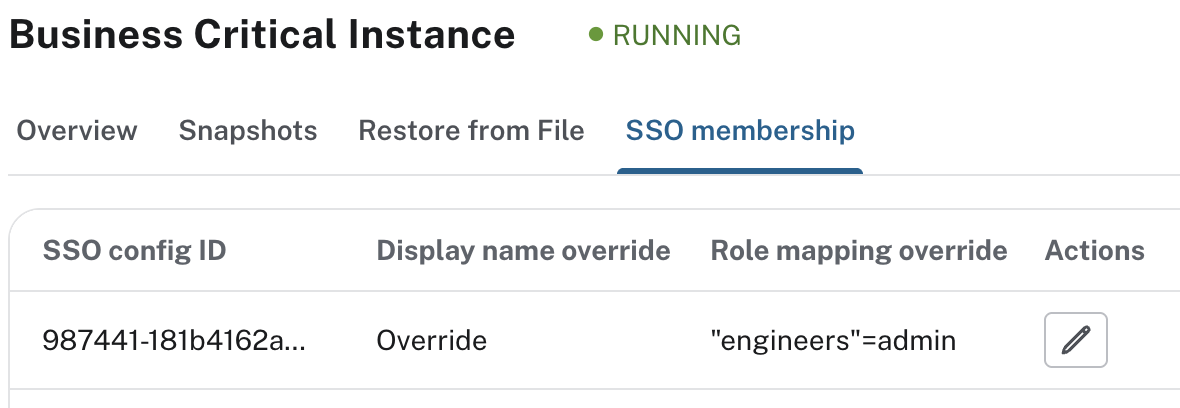
If you have overrides on instances, the overridden fields remain frozen but everything else updates with an SSO configuration update.
For example, if role mapping is overridden on an instance and the linked SSO configuration username claim is updated, the instance still receives this update when the configuration is applied. If the linked SSO configuration’s role mapping is edited, the instance override prevails.
|
Editing SSO configs at an organization-level or project-level does not change SSO configuration to instances that have overrides. |
To view whether an instance inherits its SSO configuration or has an override, open the SSO Membership tab in the instance Inspect view.
Microsoft Entra ID SSO
-
In the Azure Portal, go to App Registrations and then New Registration.
-
Add a name for the new app registration and select Register. Skip redirect URI’s for now.
-
On the app overview page, take note of the Application (client) ID.
-
Select the Client Credentials link to open the client credentials page.
-
Create a new secret and copy the Value field, it won’t be visible after leaving the page.
-
Go back to the App Overview page and open the App Endpoints and take note of the OpenID Connection metadata document URI
-
Under Authentication in the left-hand navigation, setup redirect URLs:
-
Adding a new Web platform
-
Enter
https://login.neo4j.com/login/callbackas the redirect URI.
-
-
In the Aura console, go to Organization > Security > Single Sign On > New configuration
-
Select how you want the SSO configuration to be applied in Aura:
-
Use as a log in method for the organization applies to organization-level logins (which acts as a login to the Aura console).
-
Use as a login method for instances within Projects in this Organization applies to the project-level and you can select specific projects within the organization (where login is on the instance).
-
Or, select both.
-
-
For IdP Type select Microsoft Entra ID.
-
For Client ID enter the Application (client) ID from the Azure app.
-
For Client Secret enter the client secret value (not secret id) from the secret you created in the Azure app.
-
For Discovery URI enter the OpenID Connect metadata document URI.
-
Configure any additional settings if required by your identity provider.
-
Instance-level SSO: Optionally configure role mappings, token request scopes, username claims, group claims, and additional token parameters.
-
Organization-level SSO: No additional configuration is available.
-
-
Select Create
-
Select the additional log in methods:
-
For organization-level testing it is recommended to keep the Email/password or Google log-in method enabled, so that if SSO fails, you can still access the Aura console and adjust the configuration.
-
For instance-level testing the user/password login is always available on the instance, so if SSO isn’t working, the instance is still accessible.
-
Token request scopes
When requesting the token from Azure, the scopes Aura sends are:
-
openidaccess to a unique identifier to identify the user. -
profileaccess to basic profile information. -
emailcontains the user’s email address.
This will result in Azure asking for consent to display details related to these scopes. For more information, see OpenID Connect Scopes
Okta SSO
-
In the Okta admin portal go to Applications and then Create App Integration.
-
For Sign-in method select OIDC - OpenID Connect.
-
For Application type select Web Application.
-
For Sign-in redirect URIs add https://login.neo4j.com/login/callback as the redirect URI.
-
Save.
-
In the Aura console, go to Organization > Security > Single Sign On > New configuration.
-
Select how you want the SSO configuration to be applied in Aura:
-
Use as a log in method for the organization applies to organization-level logins (which acts as a login to the Aura console).
-
Use as a login method for instances within Projects in this Organization applies to the project-level and you can select specific projects within the organization (where login is on the instance).
-
Or, select both.
-
-
For IdP Type select Okta.
-
For Client ID enter the Okta Client ID.
-
For Client Secret enter the Client Secret.
-
Select discovery method:
-
For Discovery URI take the domain from your Okta portal (for example https://dev-123-admin.okta.com/) and add
.well-known/openid-configuration. The final URL should look similar tohttps://dev-123-admin.okta.com/.well-known/openid-configuration. -
Alternatively, you can select Manual Configuration and enter the values separately, including Issuer, Authorization Endpoint, Token Endpoint and JWKS URI.
-
-
Configure additional settings if required by your identity provider.
-
Instance-level SSO: Optionally configure role mappings, token request scopes, username claims, group claims, and additional token parameters.
-
Organization-level SSO: No additional configuration is available.
-
-
Select Create.
-
Select the additional log in methods:
-
For organization-level testing it is recommended to keep the Email/password or Google log-in method enabled, so that if SSO fails, you can still access the Aura console and adjust the configuration.
-
For instance-level testing the user/password login is always available on the instance, so if SSO isn’t working, the instance is still accessible.
-
FAQ
Can users get organization roles added to them in Aura console via SSO and a group to role mapping?
No, users must be granted the role on the organization (e.g. Owner, Admin, Member) via Aura console invites or the access management API.
For Microsoft Entra only: Why am I unable to connect to the instance after completing the SSO login, the connection is showing as unconnected?
Ensure that the email field is provided on your user in Microsoft Entra ID. If it already is, contact support for further assistance.
What happens if I enable/disable tool authentication on an instance
Enabling tool authentication will no longer allow Aura Console users to connect to an instance with instance SSO. Drivers and external tools remain unaffected. For more information see Tool authentication with Aura user.