Cost explorer
Organization Billing provides organization-level visibility into costs, usage, and billing configuration. This page in the Aura console includes the following tabs: Overview, Cost explorer, Usage, Payment methods, and Invoices.
Required roles
At the organization-level, billing and usage is available to Organization Owner and Organization Admin.
At the project-level, usage is available to Project Admin.
Overview
View total usage trends for the past month or year. The Overview tab also displays billing account information, including initial Aura Consumption Units (ACUs), remaining credits, credits consumed month-to-date, and approximately how many days ACUs will last. This is also where you redeem credits.
How to use the cost explorer
The cost explorer allows you to see what is generating cost and when. It displays usage information across all projects and billing accounts in the organization, to help you:
-
Analyze spending patterns over time
-
Identify which projects, services, resources, or providers generate costs.
-
Investigate the financial impact of resource consumption
Usage details
You can view detailed information about your usage, including:
-
Consumption period: the date the usage occurred
-
Project ID and name
-
Service: an offering that can be purchased from Neo4j. For a managed database service like Neo4j Aura, services include compute, storage or networking charges.
-
Tier
-
Resource: a resource is a unique component that incurs a charge. For example, an AuraDB/AuraDS instance, an Aura Agent or an Aura Graph Analytics session. The following are tracked
-
Resource type
-
Resource ID
-
Resource name
-
-
Cloud provider and region
-
Consumed quantity and unit: the volume of a metered SKU associated with a resource or service used. For example, for an AuraDB instance, consumed quantity represents the amount of metered GB-hours.
-
Total cost: the monetary value of the consumed quantity. Calculated as
consumed quantityxunit price.
Usage
Organization-level usage aggregates billable usage across billing accounts and projects.
Project-level usage can be viewed separately from the Billing menu on the project-level.
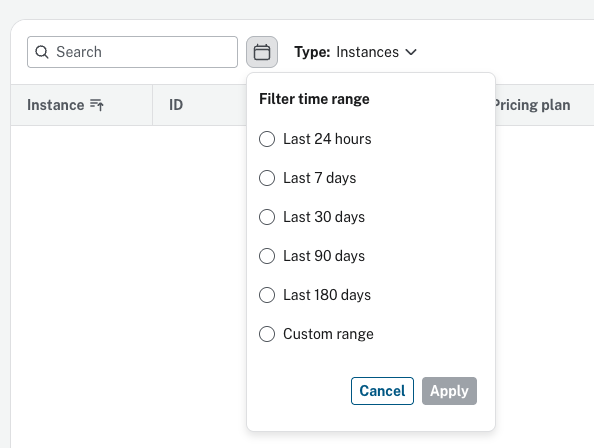
Filter by time range
-
Filter the usage data by predefined and custom date intervals.
-
Look back for a period of up to 180 days. However, you can only select an interval of maximum 30 days at a time.
-
Filter by
Last 24 hours,Last 7 days,Last 30 days,Last 90 days, or aCustom range.
All instances with usage in the selected interval are listed, including destroyed instances.
View instances, sessions, egress, or agents usage
Usage can be viewed by the following categories:
-
Instances includes a usage summary for database instances.
-
Sessions includes a usage summary for any Graph Analytics sessions.
-
Egress includes a usage summary for any data egress from Aura (e.g. Log Forwarding usage).
-
Agents includes a usage summary of Aura agents.
Product name and pricing
For more information, refer to Aura Pricing for the specific product names and their prices. If a database is paused, its charge is reduced to 20% of the standard hourly rate.
Payment methods
View the payment methods configured for the organization.
For prepaid, you can see:
-
Contracted credits: the initial credit balance for the current contract period.
-
Consumed credits: total usage so far in the current contract period.
-
Remaining credits: remaining balance in the current contract period.
For credit cards, you can see the last 4 digits, the expiration date and the billing address.
For more information, see payment options.