Multiple databases
AuraDB Business Critical AuraDB Virtual Dedicated Cloud
AuraDB Business Critical and Virtual Dedicated Cloud support multiple databases within an instance. You can create and manage databases using the Aura console or the Aura API.
Each instance has its own compute and storage and the separate databases run within it. Creating and removing databases is faster than managing separate instances. And, you can scale within the same instance, reducing administrative overhead.
Billing for instances with multiple databases enabled is the same as for single database instances. Usage is charged at your standard AuraDB GB-hour rate, regardless of the number of databases.
User and system databases
An instance contains a system database and a default user database named neo4j.
The system database stores RBAC and credentials.
User databases store graph data.
When you enable multiple databases, you can add more user databases alongside neo4j.
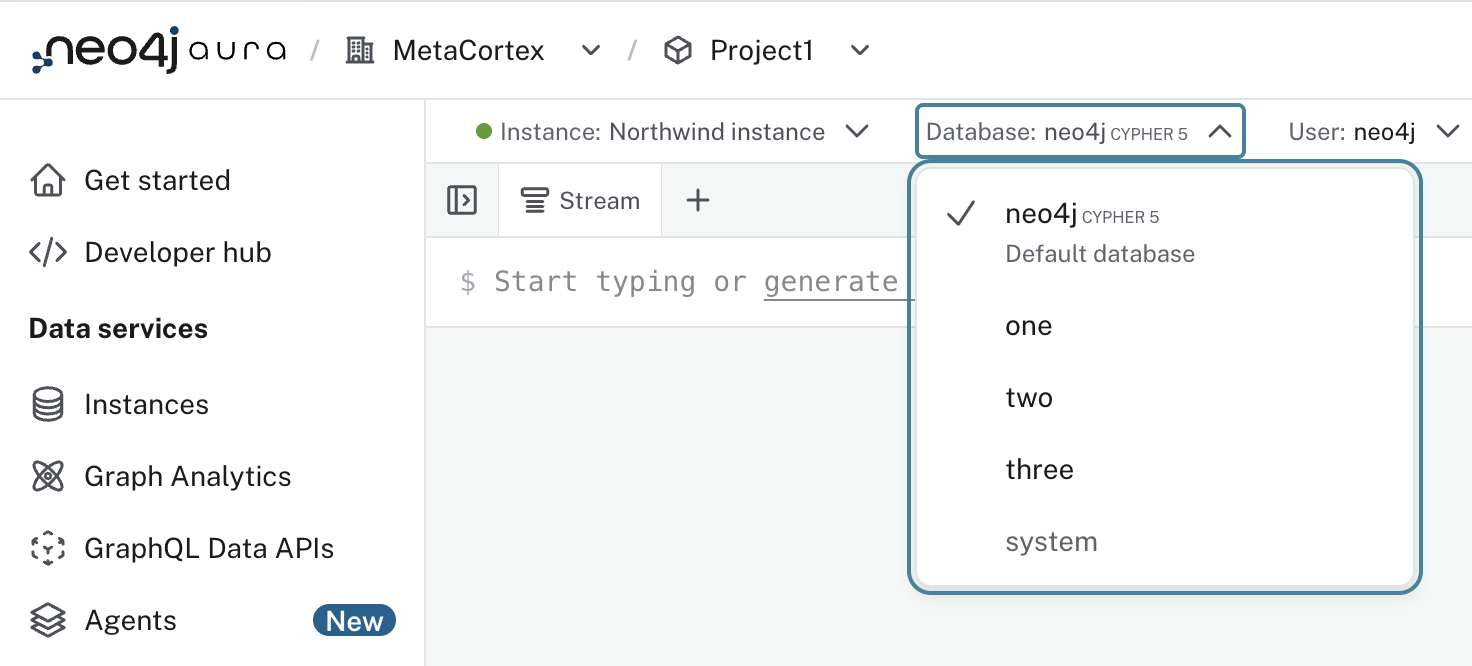
| Database in the screenshot | What it is |
|---|---|
|
The user databases that store graph data. |
|
The |
Limits (RAM and maximum databases)
All databases share the instance’s compute and memory resources. By default, up to 5 databases per GB of RAM can be provisioned. The maximum number of databases depends on the memory size (RAM) of the instance, with an upper limit of 100 for AuraDB Business Critical and 250 for AuraDB Virtual Dedicated Cloud.
| Available instance memory | Maximum databases AuraDB Business Critical |
Maximum databases AuraDB Virtual Dedicated Cloud |
|---|---|---|
2GB |
10 |
10 |
4GB |
20 |
20 |
8GB |
40 |
40 |
16GB |
80 |
80 |
32GB |
100 |
160 |
64GB and above |
100 |
250 |
|
These limits are the maximum number of databases you can create, choose an instance size that fits your database count and workload, and scale up if you see resource pressure. |
Each project can have up to 20 multiple database enabled instances by default. This default applies to both AuraDB Business Critical and Virtual Dedicated Cloud, and helps keep performance and provisioning consistent as usage grows. If you need more, contact Support with your project, region, and the number of databases you expect to run, and your request will be assessed.
Managing databases
API requirements
|
All endpoints below now require your Organization ID and Project ID in the path, in addition to your Instance ID. |
Standard guidance for creating API credentials applies, see Aura API → Overview.
Multiple databases use the beta version of the Aura API. Use https://api.neo4j.io/v2beta1 as the base URL.
Create a multiple database instance
|
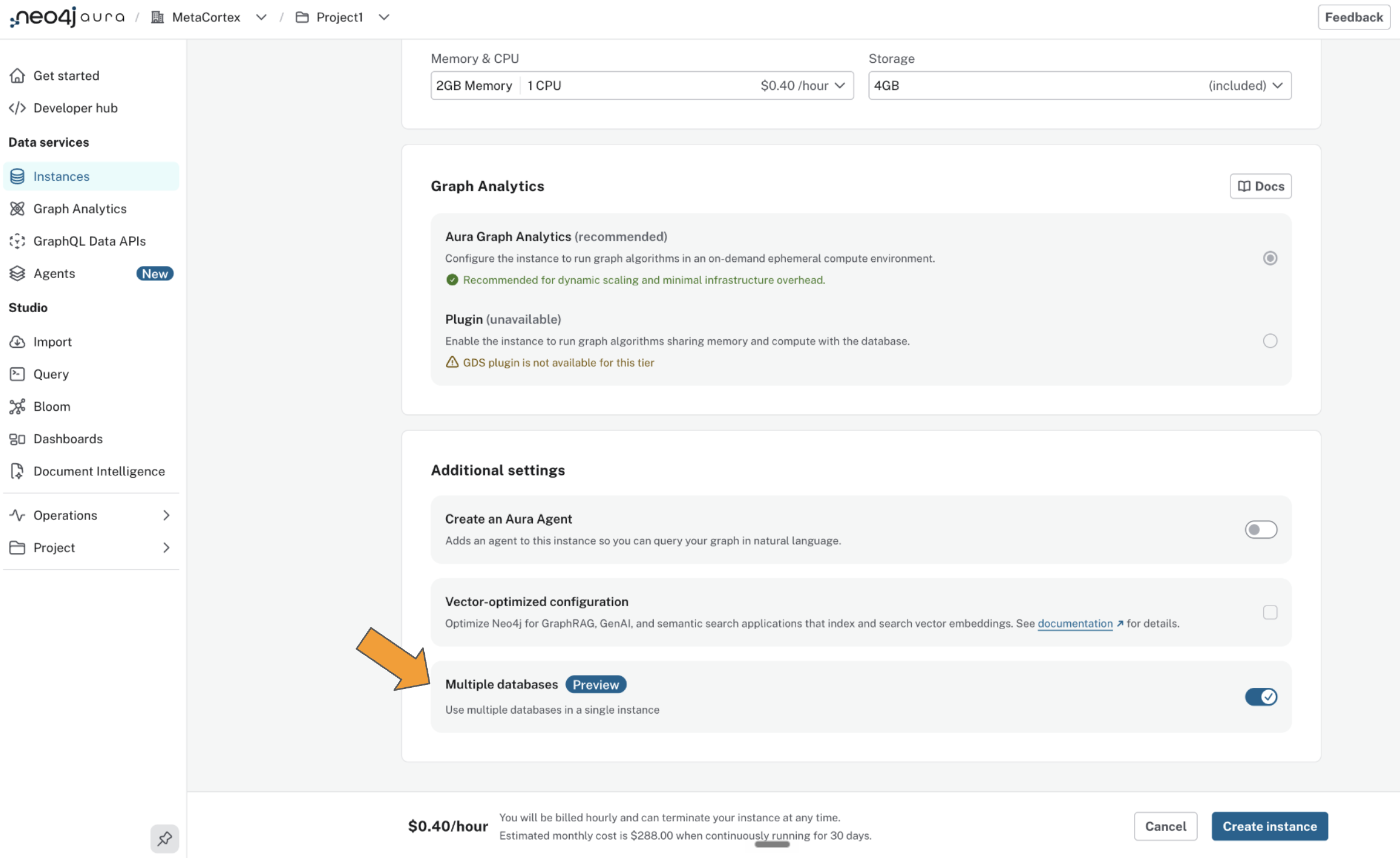
You must enable multiple databases during instance creation. This setting cannot be changed later. |
During instance creation, scroll down to Additional settings and enable Multiple databases.
POST /organizations/{orgId}/projects/{projectId}/instances

curl -X POST "https://api.neo4j.io/v2beta1/organizations/$ORG_ID/projects/$PROJECT_ID/instances" \
  -H "Authorization: Bearer $ACCESS_TOKEN" \
  -H "Content-Type: application/json" \
  -d '{
    "region": "europe-west1",
    "memory": "4GB",
    "storage": "8GB",
    "name": "northwindinstance",
    "type": "business-critical",
    "cloud_provider": "gcp",
    "multi_database": true
  }'
Create databases
|
Databases cannot be created using Cypher database management commands, only via API and Aura console. |
When an instance with multiple databases enabled is created, a default user database named neo4j is also created automatically.
It is not possible to delete this database.
Databases contain a name and an automatically generated id.
Database names follow standard neo4j rules and are immutable so cannot be changed after they are created. Avoid using personal or sensitive information in database names.
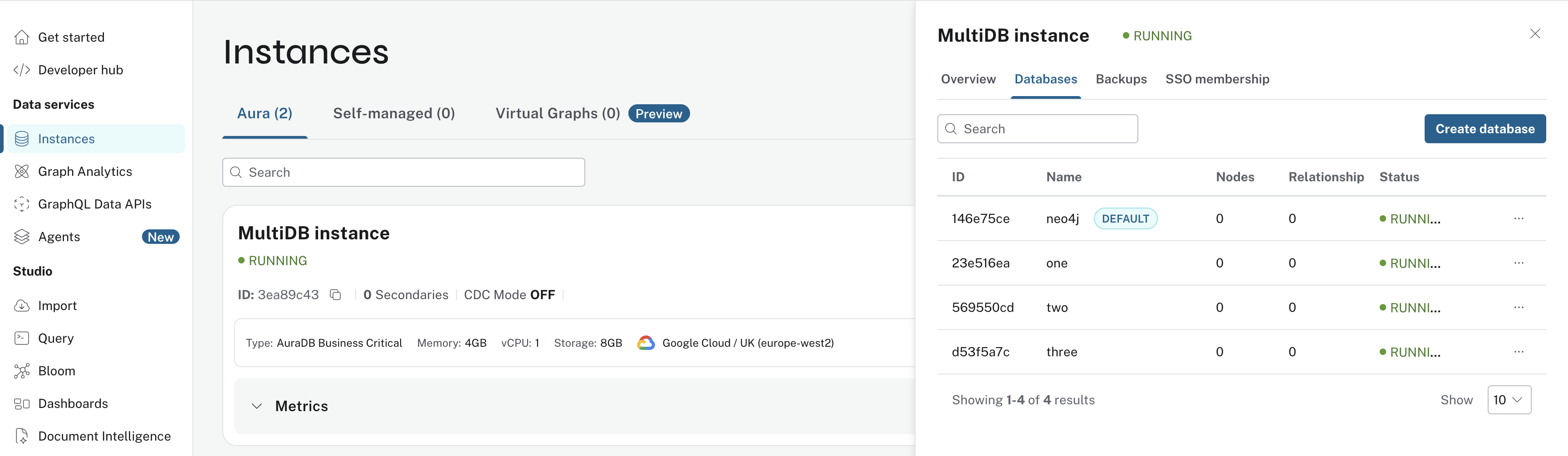
From the instance […] more menu > select Databases > select Create Database.
POST /organizations/{orgId}/projects/{projectId}/instances/{instanceId}/databases

curl -X POST "https://api.neo4j.io/v2beta1/organizations/$ORG_ID/projects/$PROJECT_ID/instances/$INSTANCE_ID/databases" \
  -H "Authorization: Bearer $ACCESS_TOKEN" \
  -H "Content-Type: application/json" \
  -d '{
    "name": "test"
  }'
View database details
You can create, view, and manage databases from the instance Databases view. Access it from either:
-
The instance […] more menu > select Databases
-
Inspect > select the Databases tab.
Instance details
GET /organizations/{orgId}/projects/{projectId}/instances/{instanceId}/databasesDatabase details
GET /organizations/{orgId}/projects/{projectId}/instances/{instanceId}/databases/{databaseId}Connecting applications
When connecting to a multiple database instance from an external client, specify the database name for your session or query.
The database name identifies which database to access.
If no database name is provided, queries run against the default neo4j database.
This applies to drivers, the Query API, and other external sources.
Supported features
Multiple databases are supported across Aura tools. There are some things to consider when working with multiple databases:
-
Backup, export, and restore: Either back up and restore databases individually or restore the whole instance to a restoration point.
-
Bloom and Query: When connecting, select the target database using the connection bar.
-
Metrics and Logs: Switch between databases using the Database dropdown in Metrics and see Database specific Query logs. Includes Metrics Integration and Log Forwarding.
-
Aura API: See API requirements
-
Import: Select the instance and the target database when running an import.
-
Restore: Restore a database using Database Restore or drag and drop.
-
Security & Networking: IP filtering, Private endpoints and Customer Managed Keys (where available for the Aura tier)
-
Single Sign-On: Authenticate users accessing the instance.
|
Updates about supported features will be added to Canny. |