Cell click action
The cell click action is available for Tables.
Use it to:
-
Set a parameter: A cell click will always set a parameter, which can update the rest of the dashboard so visualizations respond to the selection.
-
Navigate to a dashboard page: Opens a specific page within the current dashboard. This is typically used to create a drill-down effect, where the set parameter action filters the visualizations on the destination page.
-
Navigate to an external URL: The set parameter value can be embedded directly into a URL string to pass the parameter value to the external target. For example, insert the
$employeeparameter value into the URL e.g.https://neo4j.com/name={employee}
|
To keep data secure, avoid including sensitive data in URL parameters.
For example, a URL including |
Action icons
Action icons appear next to values that can be set as a parameter.
|
Set parameter |
|
Set parameter and navigate to URL |
|
Set parameter and navigate to dashboard page |


Example
The following example uses the Northwind dataset to show how to set a parameter and navigate to a dashboard page. Click the name of a top order and revenue generator to open that employee’s dashboard.
-
The example starts with the default Main page.
-
Add a second page called Employee info.
-
Use an action on the Main page to set a parameter and navigate to Employee info.
1) On the Main page, add a card with a Cypher query that returns each employee’s name, number of orders, and total revenue.
MATCH (e:Employee)-[:SOLD]->(o:Order)-[orders:ORDERS]->(:Product)
RETURN
  e.firstName AS employee,
  count(DISTINCT o) AS orders,
  round(sum(orders.quantity * orders.unitPrice), 2) AS revenue
ORDER BY revenue DESC
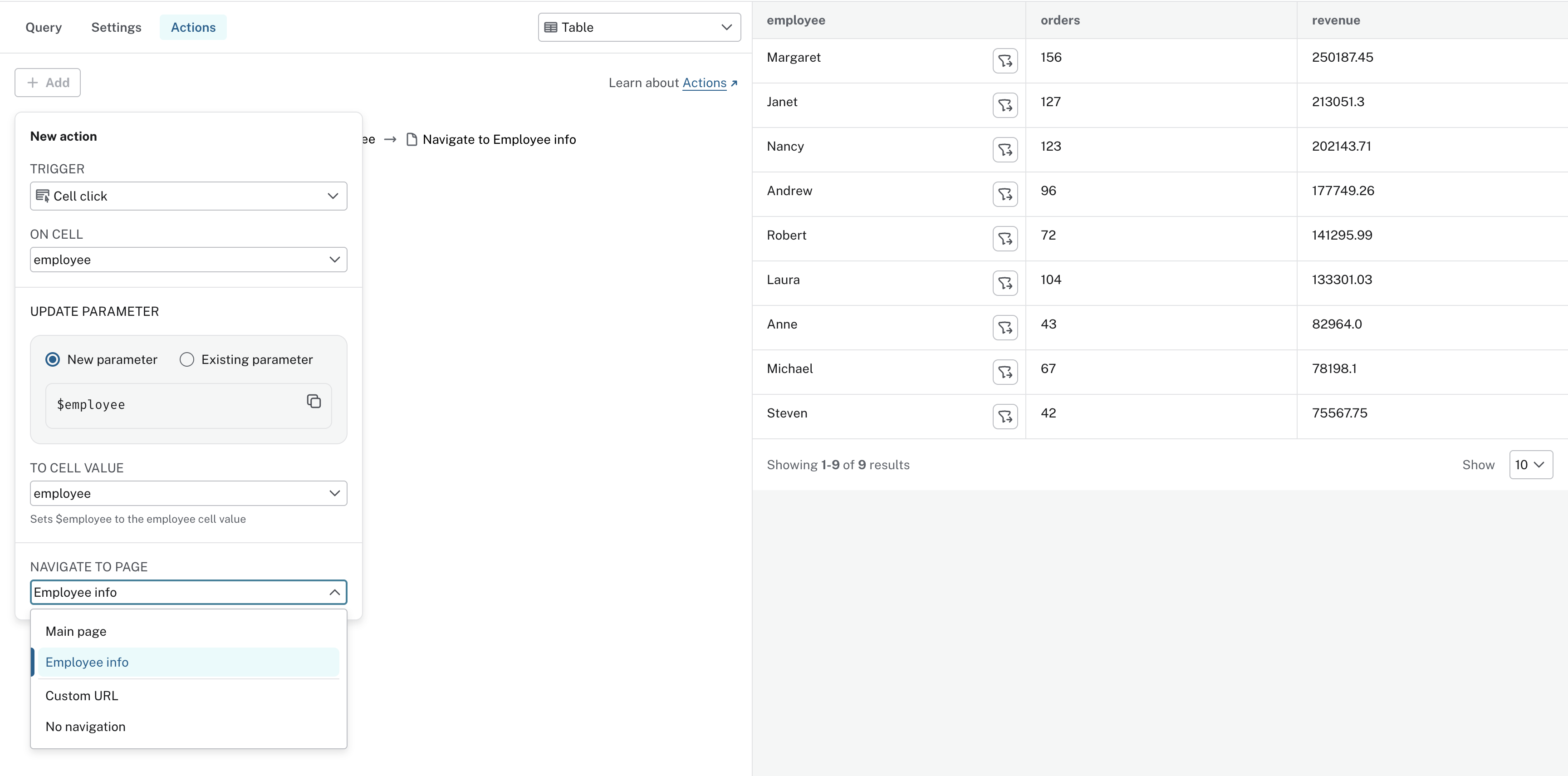
2) Add an action to the employee column’s values
In the actions panel set:
-
TRIGGER Cell click
-
ON CELL employee
-
UPDATE PARAMETER employee
-
TO CELL VALUE employee
-
NAVIGATE TO PAGE Employee info
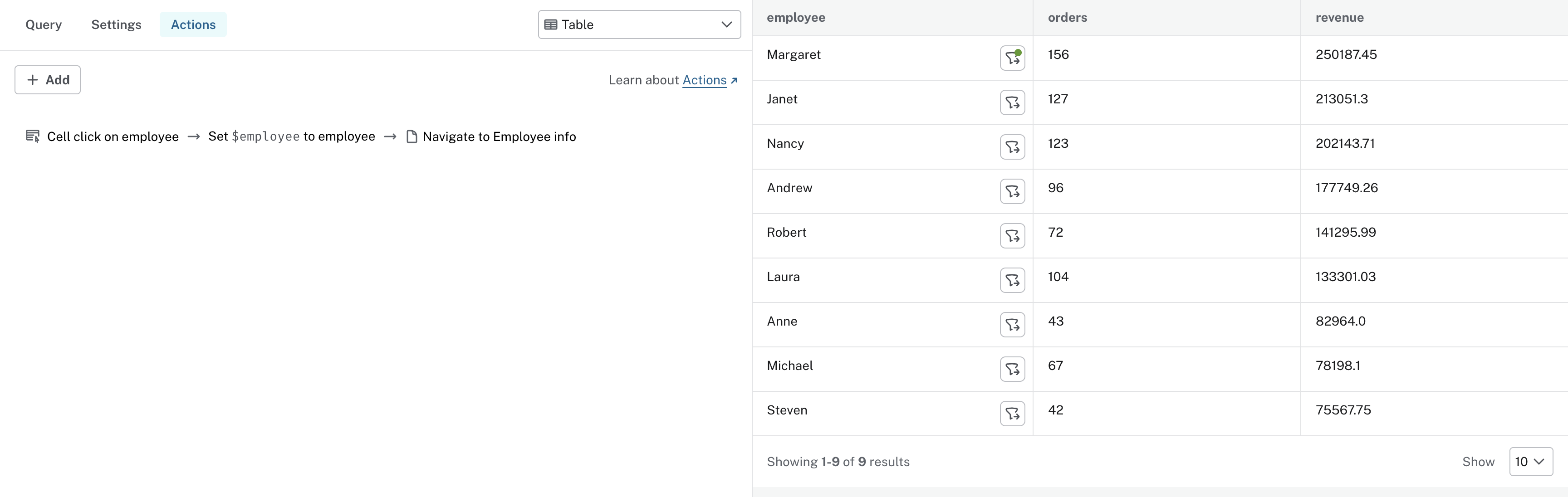
Once the action is configured, the action preview shows its structure
action trigger → parameter action → optional navigation action
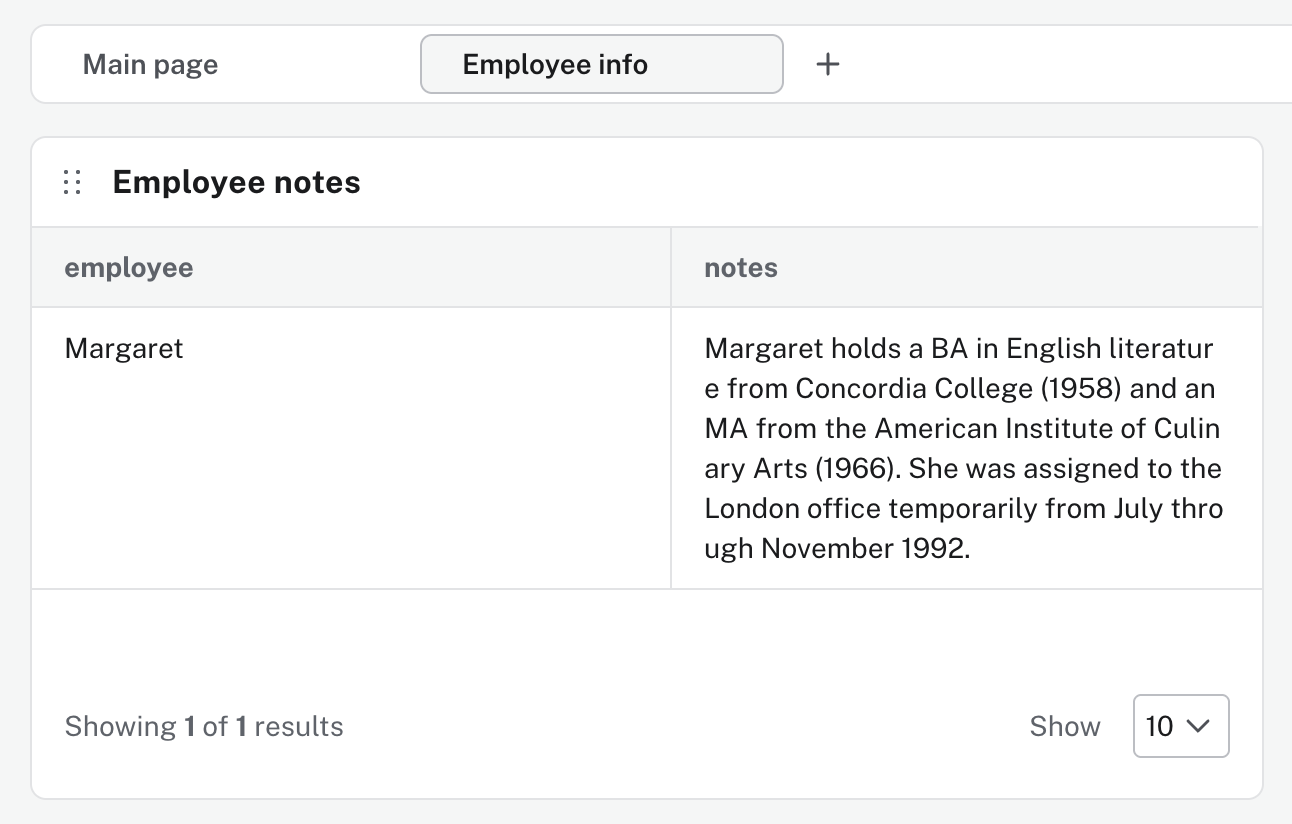
3) Use the $employee parameter on the Employee info page’s visualizations
On the Employee info page, add a Cypher query to a card that reads the parameter and returns details for the selected employee.
MATCH (e:Employee)
WHERE e.firstName = $employee
RETURN
  $employee AS employee,
  e.notes AS notes
4) Click on a name on the Main page
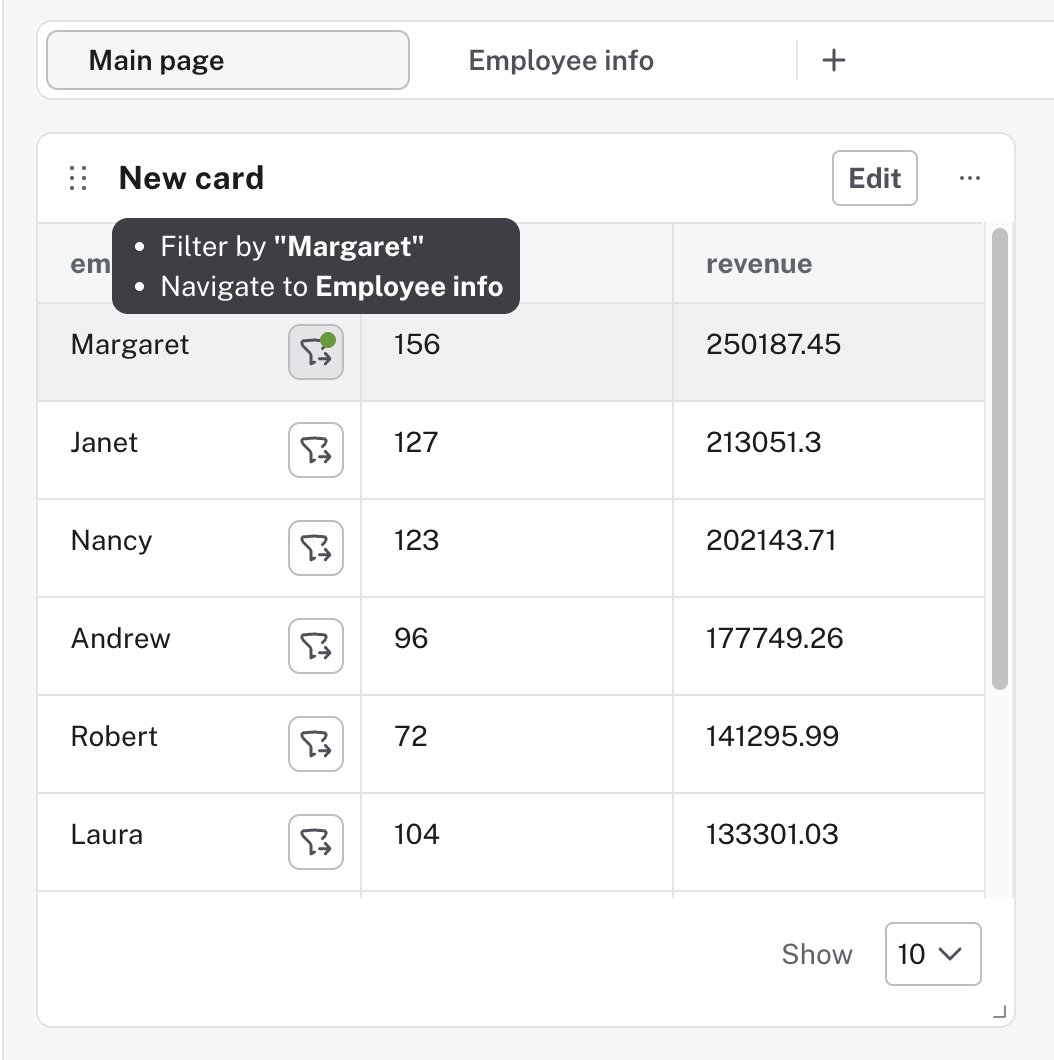
5) This navigates you to the Employee info page and updates the visualization based on the value that was selected