Result frames
There are three ways to view data in Neo4j Browser. All queries that you run in the Cypher® editor populate a reusable result frame. Query results are rendered as:
-
Graph — graph result frame.
-
Table — table result frame.
-
RAW — code result frame.
-
Plan — execution plan frame.
You can switch between those with the icons on the left side of the result frame. The results can be downloaded and exported in various formats depending on view, as described below. The download button is located in the upper right corner of the result frame.
|
Queries that return only tabular/scalar data cannot be visualized as a graph. The results are returned in table and RAW view only. |
Graph result frame
The graph visualization functionality is designed to display a node-graph representation of the underlying data stored in the database in response to a given Cypher query. Nodes are represented as circles and relationships as lines and is especially useful for determining areas of interest or quickly assessing the current state and structure of the data. You can use the search button to search for objects in the graph and see the results highlighted in the graph. Graph view results can be downloaded as PNG.

Tips when using the Graph view:
-
Use the controls in the bottom right corner of the frame to zoom in and out of the visualization. Additionally, you can zoom using trackpad zoom gestures or a mouse wheel in combination with a modifier key. (If you are in full-screen view, the modifier key is not needed to zoom.) On Mac, use
⌘ + scrolland on Windows and Linux, useCtrl + scrollto trigger zoom. You can also use the Fit to screen button to fit all query results into the view. -
Expand the Cypher editor area with the
 icon next to the play button in the editor.
See Fullscreen view below for more information on the fullscreen view.
icon next to the play button in the editor.
See Fullscreen view below for more information on the fullscreen view. -
Select a node or a relationship to view its properties. The nodes already have sensible captions assigned by the Browser, which auto-selects a property from the property list to use as a caption. To change how your graph looks, see Browser styling.
-
Right-click a node to bring up the context menu. From the context menu, you can expand/collapse the node, dismiss or unpin it, explore the graph with Bloom, and show all relationships. You can also undo context-menu actions, when applicable.
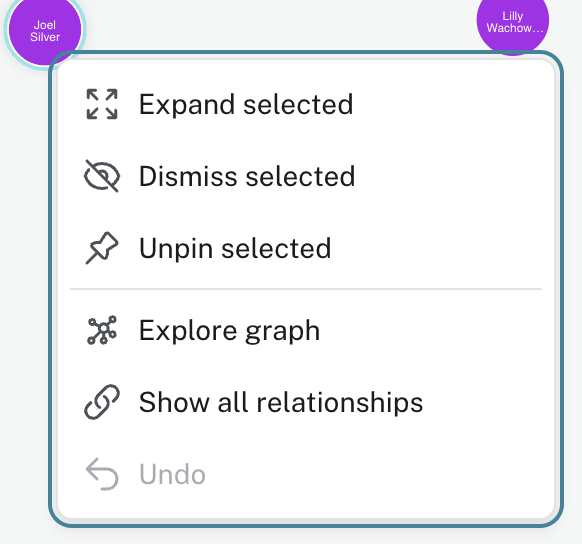 Figure 2. Context menu
If you double-click a node, you automatically expand it, and if you double-click it again, you undo the expansion. If you right-click a relationship, you can dismiss it.
-
Right-click in an empty spot brings up another context menu. This allows you to explore the graph with Bloom, show all relationships, and undo previous actions from the context menu, when applicable.
-
If you cannot see the whole graph or the results display too close together, you can adjust by moving the visual view and dragging nodes to rearrange them.
Table result frame
The Table result view displays the result in a tabular format. For queries that return only tabular data, only the table and RAW views are available. Table view results can be downloaded as CSV or JSON, and additionally you can copy both CSV and ASCII table to your clipboard.

Tabular results can be filtered, displayed in different styles, or downloaded using the buttons in the upper right corner of the result frame.
|
Filtering only filters on the returned results and is thus limited by the query and/or record limit (set in the Settings drawer). |

RAW result frame
The RAW result view displays the submitted request, the Neo4j Server version and address, and the response. RAW results cannot be downloaded nor filtered.

Plan view
The Plan view is available for EXPLAIN and PROFILE queries and shows the execution plan for the query.
For such queries, you can also toggle to view the results in a RAW format.

Query execution time
Each result frame, regardless of view, displays the time it took to execute the query and the time it took to return the results. For example, Started streaming 20 records after 67 ms and completed after 73 ms. means that:
-
The query resulted in 20 records.
-
It took 67 ms for the first record to become available.
-
It took 73 ms for the entire operation, from execution to returning the last record. And thus it took 73-67= 6 ms to stream all 20 records.
Fullscreen view
The fullscreen view can be accessed in the top right of the result frame, next to the Cypher editor, using the button.
The fullscreen view expands the result frame and offers three different views:
-
Interactive table view
-
Results on bottom
-
Results on right

All three options displays the Cypher query and the results, either as a graph (if results can be visualized as a graph) or as a table. You can toggle between the graph and the table view in the fullscreen view, just like in the regular result frame and the same options are available for filtering, printing, and downloading results.
However, the interactive table view displays the result both as a graph and a table. It consists of three panels, the Cypher editor (populated with your Cypher query), the graph view, and the table view.
The query in the editor can be edited and re-run, and the results will be updated in both the graph and the table view.
The graph panel offers the same functionality as the regular graph view, but it also allows you to select graph objects from the graph and see them highlighted in the table. Similarly, the table panel allows you to select graph objects from the tabular results and see them highlighted in the graph. The table panel also offers the same functionality as the regular table view, such as filtering, printing, and downloading results.