Query
Neo4j Enterprise Studio has three tools built in, Query, Bloom, and Dashboards. All three of them allow you to interact with your data directly from the UI in Enterprise Studio.
As the name suggests, Query is the tool to use to query your data and visualize the results. Outside of Enterprise Studio, this functionality exists both built in to the Neo4j Aura console and as a standalone tool called Neo4j Browser. For more information about the standalone tool, see Neo4j Browser documentation.
In Enterprise Studio, you can find Query in the sidebar, under Tools.
Select your Neo4j deployment via the dropdown and select your database from the database dropdown.
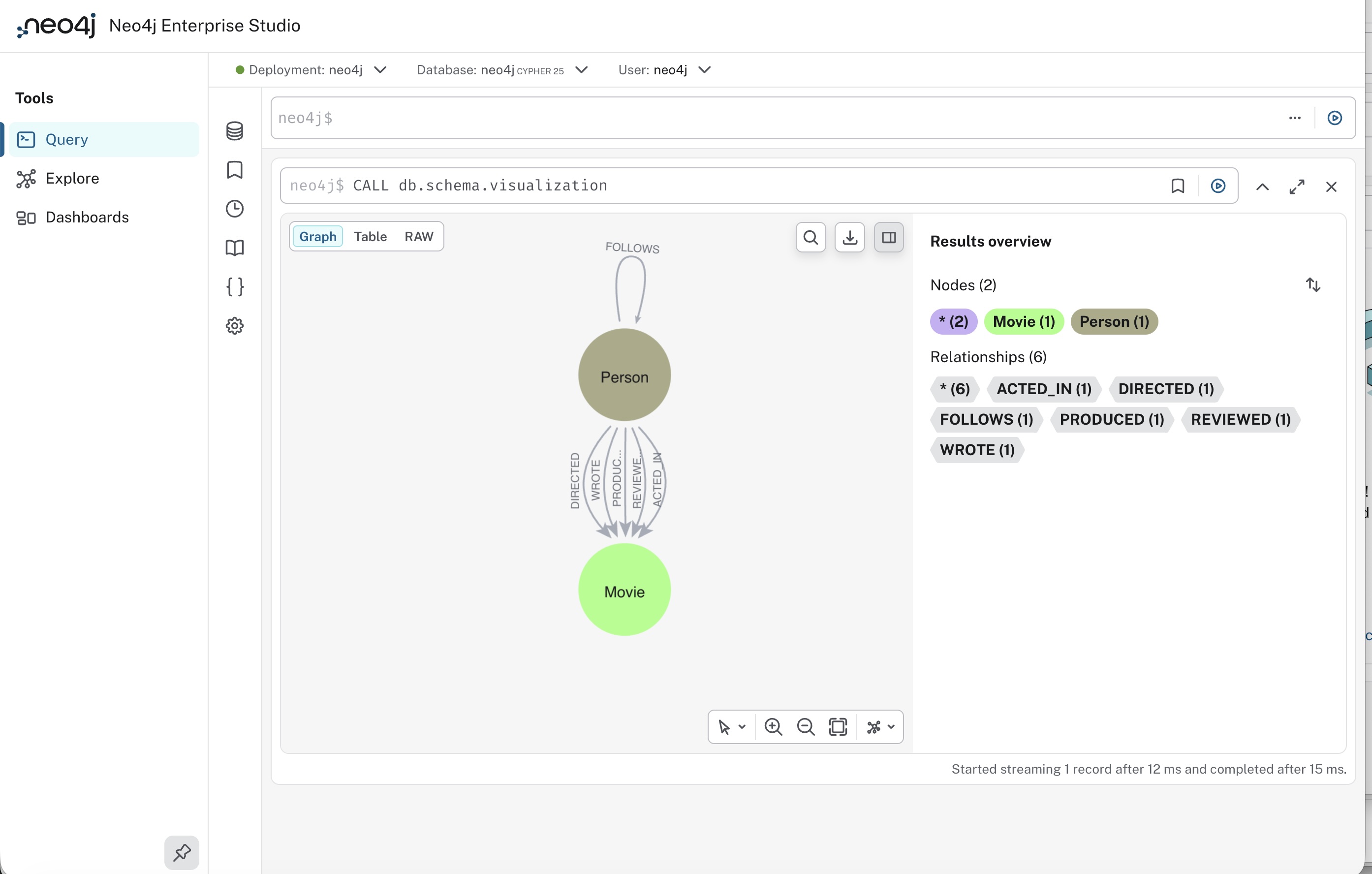
The UI consists of a collapsible sidebar, a Cypher® editor, and one or more reusable result frames.
Query sidebar
The sidebar can be expanded and collapsed with a button:
The Query sidebar contains six drawers:
-
Database information - Information about the contents of the active database, i.e. the number of nodes and relationships, their labels and types, as well as a list of property keys.
-
Saved Cypher - A list of your saved Cypher queries. By saving Cypher queries, you can access them directly from this drawer and populate the Cypher editor by clicking on them. You can download and upload them, and delete them when they are no longer needed.
-
History - A list of all queries you have executed. Note that this list is not limited to any specific database or instance, but shows all your executed Cypher queries.
-
Cypher Reference - An in-product quick reference to the Cypher query language.
-
Parameters - Where you can set parameters for most of the property types in Neo4j.
-
Settings - Various settings for performance, storage, and access mode.
Cypher editor
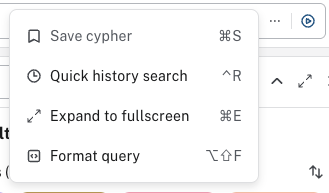
The primary interface for entering and running Cypher queries and commands. You enter your Cypher and then execute it with the play button. Should you want to edit your query, you can do so and run it again. But you can also start a new query in a new editor, as it can be instantiated multiple times. The editor also has a […] menu that allows you to save your query to the Saved Cypher drawer, do a quick history search, expand your current editor to the full screen, and format your query.
Tabs
After you have run a query, you can save and open in tab. This saves the query from the editor into the Saved Cypher drawer and opens a tab for the query. You can return to the stream and then come back to your query in the tab at any time. The tab has its own Cypher editor and result frame. You can view your results:
-
On bottom
-
On right
-
As an interactive table
For more information about tabs and their usage, see Aura documentation → Tabs.
Query co-pilot
When an administrator has configured an LLM provider for Enterprise Studio, the co-pilot lets you ask a question in natural language and suggests a Cypher query for it, which you can then review, edit, and run like any other query. Your question is sent together with the schema of the connected database, so the suggestion is based on your own data model.
This feature appears only when generative AI is enabled. If you do not see it, ask your administrator; see Configuration → Generative AI.
Reusable result frames
When you run a query in the Cypher editor, the query and the results are displayed in a reusable result frame. You can edit the query of an existing result directly in the result frame and rerun it to update the result in situ. You can also use Cmd/Ctrl + click to send it back to the main editor and re-run it from there. This results in a new reusable result frame in your stream.
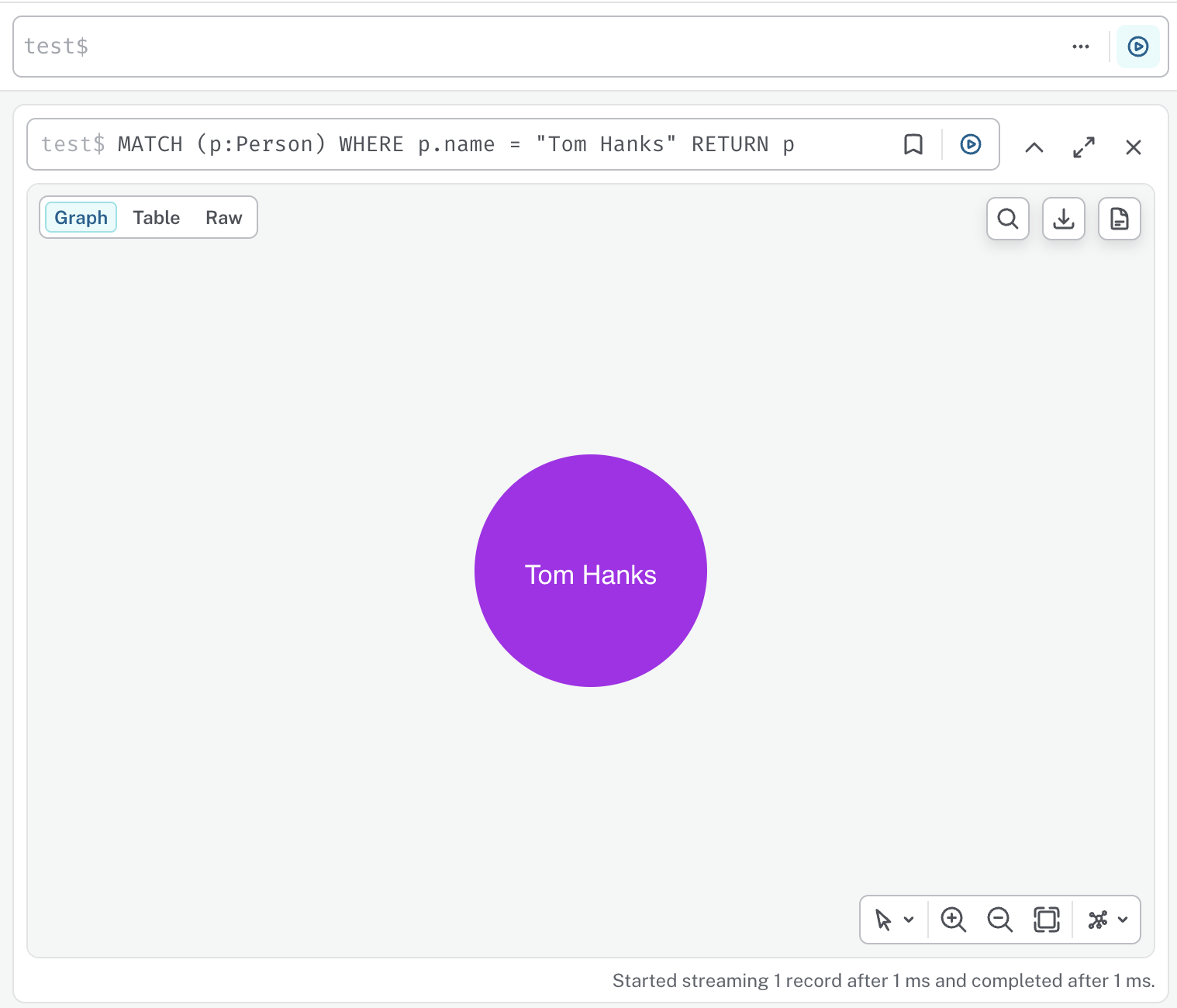
Query supports different result frame views:
-
Graph — Display the result as nodes and relationships and allow styling to be configured.
-
Table — Display the result as JSON formatted rows.
-
RAW — Display the submitted request, the Neo4j Server version and address, and the response.
For more detailed information on how to use Query, see the Query section in the Neo4j Aura documentation. Note that not all features of Query in Aura are applicable to Query in Enterprise Studio.
Migration
To migrate saved Cypher queries from Neo4j Desktop or standalone Neo4j Browser, see Administration → Migration to Enterprise Studio.