Virtual Graph data sources
|
This is the public preview documentation of Neo4j Virtual Graph. To provide feedback, please use the feedback form you were granted access to. During the public preview, we advise you not to use sensitive or production data with Virtual Graph. |
Virtual Graph currently supports the following data lakehouses as data sources:
-
BigQuery
-
Databricks
-
Snowflake
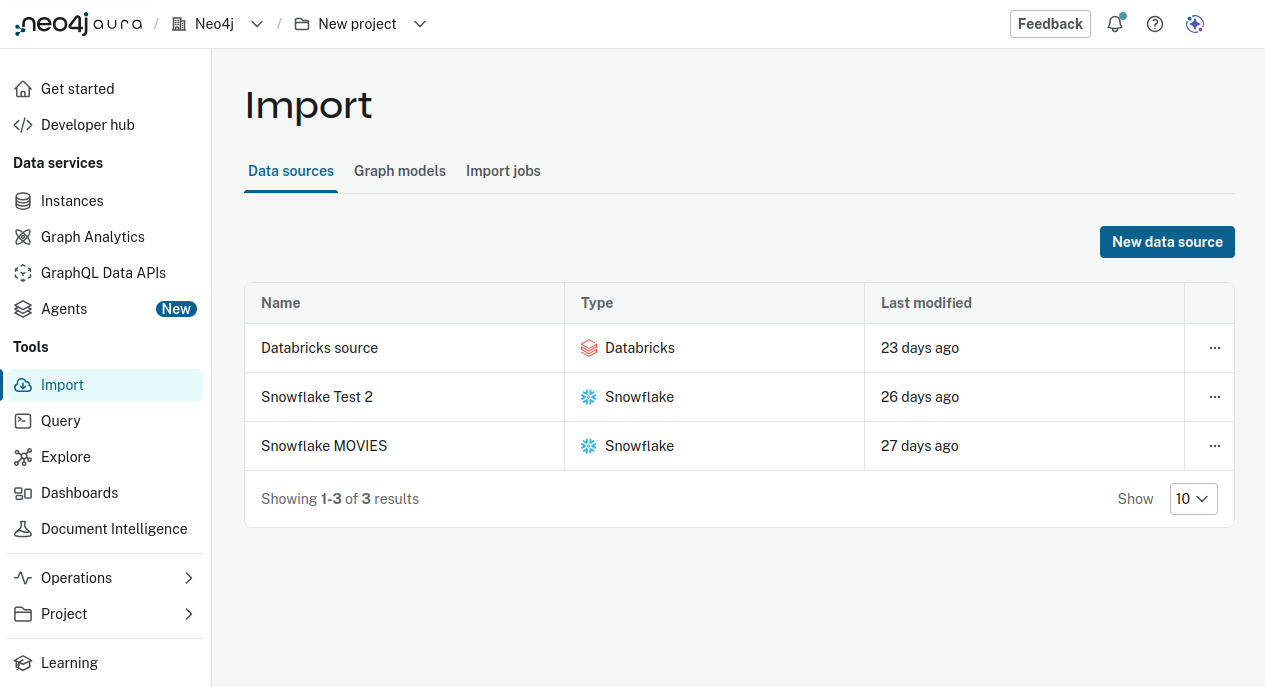
Virtual Graph data sources can be found on the Data sources tab in the Import tool in the Aura console. Data sources are shared across Virtual Graph and the Data Importer. This makes it easy to import data from the same source.
Note that the Import page also covers data sources that are currently not available for Virtual Graph.
|
Virtual Graph requires read-only access to data sources. Limit security tokens and other means of authentication to read-only access. |
|
When setting up a data lakehouse instance to use with Virtual Graph, we advise you to use a small test dataset at first to get a feeling for the generated traffic. Large data sets in combination with computation-heavy queries might incur unexpected costs. |
Creating a data source for Virtual Graph
There are two ways you can create a data source for Virtual Graph:
-
Select New data source from the Data sources tab of the Import tool and select one of:
-
BigQuery
-
Snowflake
-
Databricks
-
-
Create a data source when you create your Virtual Graph instance via Add new data source from the Virtual Graph configuration window
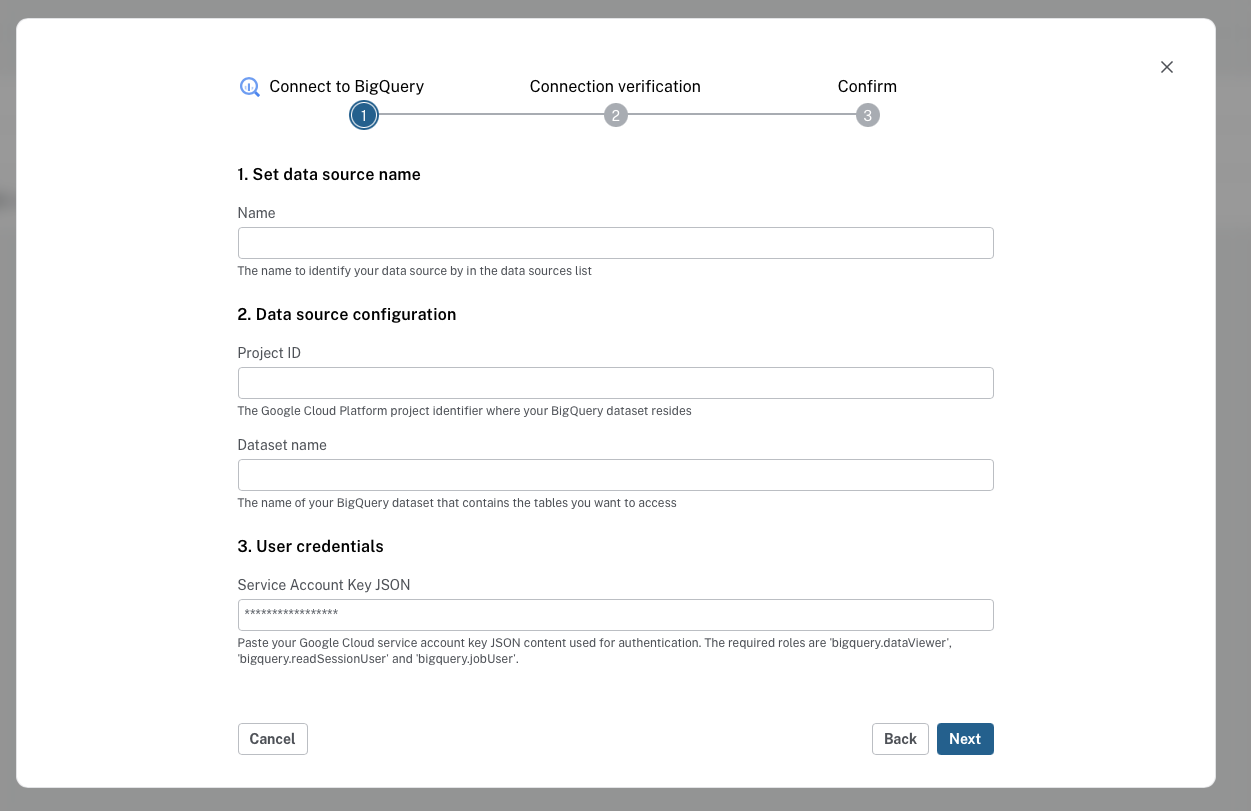
BigQuery
To create a new BigQuery data source:
-
Assign a name
-
Configure it with:
-
Project ID and dataset name. Find these in your BigQuery instance.
-
-
Pass your user credentials. We recommend that you use a Google Cloud service account. Paste the full JSON of your service account key to the Service Account Key JSON input. Make sure that your service account has the following role permissions:
-
bigquery.dataViewer -
bigquery.readSessionUser -
bigquery.jobUser -
bigquery.user
-
Databricks
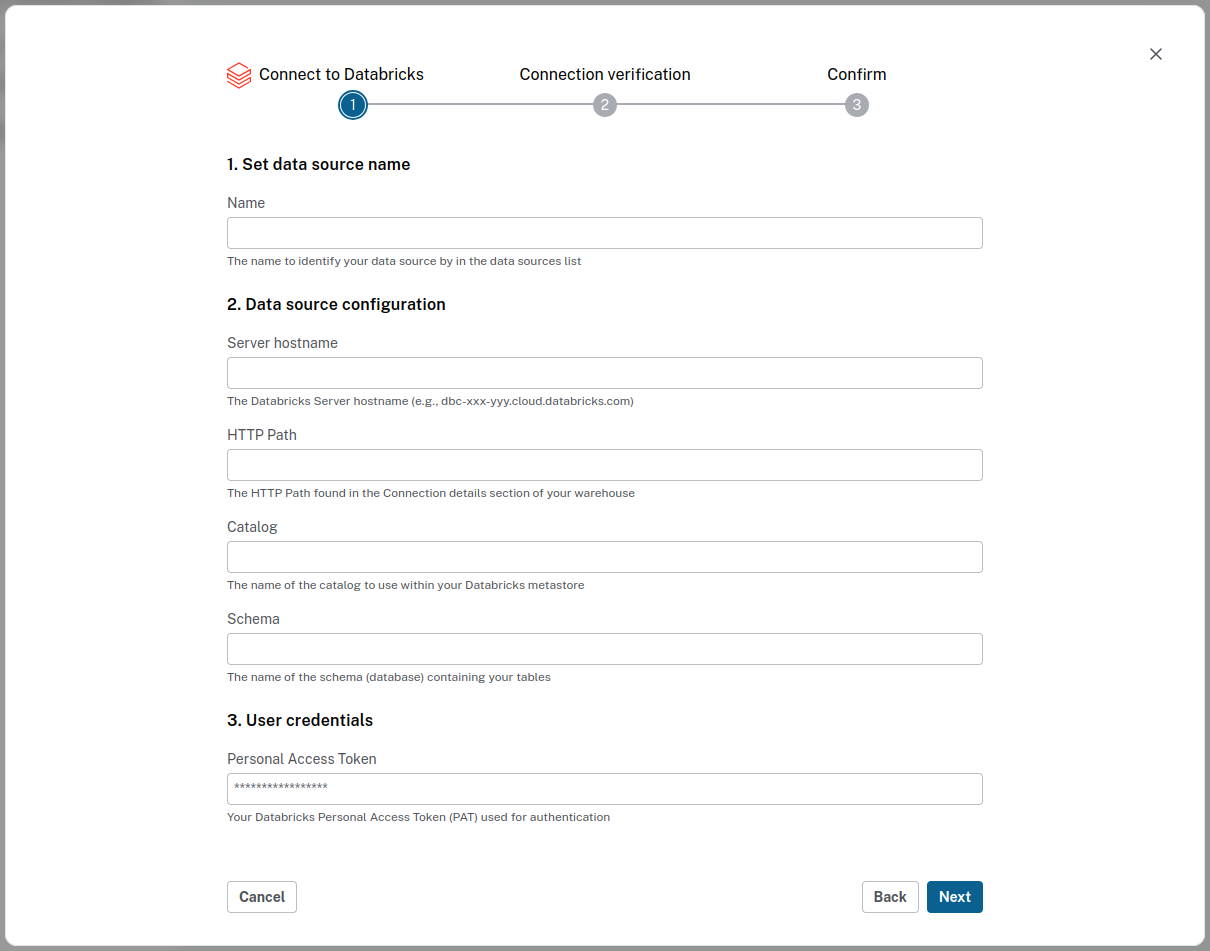
To create a new Databricks data source:
-
Assign a name
-
Configure it with:
-
Server hostname and HTTP path. Find these in Databricks under SQL Warehouses; select the warehouse you want to establish a connection to, and access the Connection details tab.
-
Catalog and schema. Find these in Databricks under Catalog from the left side menu.
-
-
Pass your personal access token. A token can be created in Databricks by accessing the user menu at the top right and then Settings → User → Developer → Access tokens → Manage → Geneate new token. Note that the token must have
sqlas its scope.
Snowflake
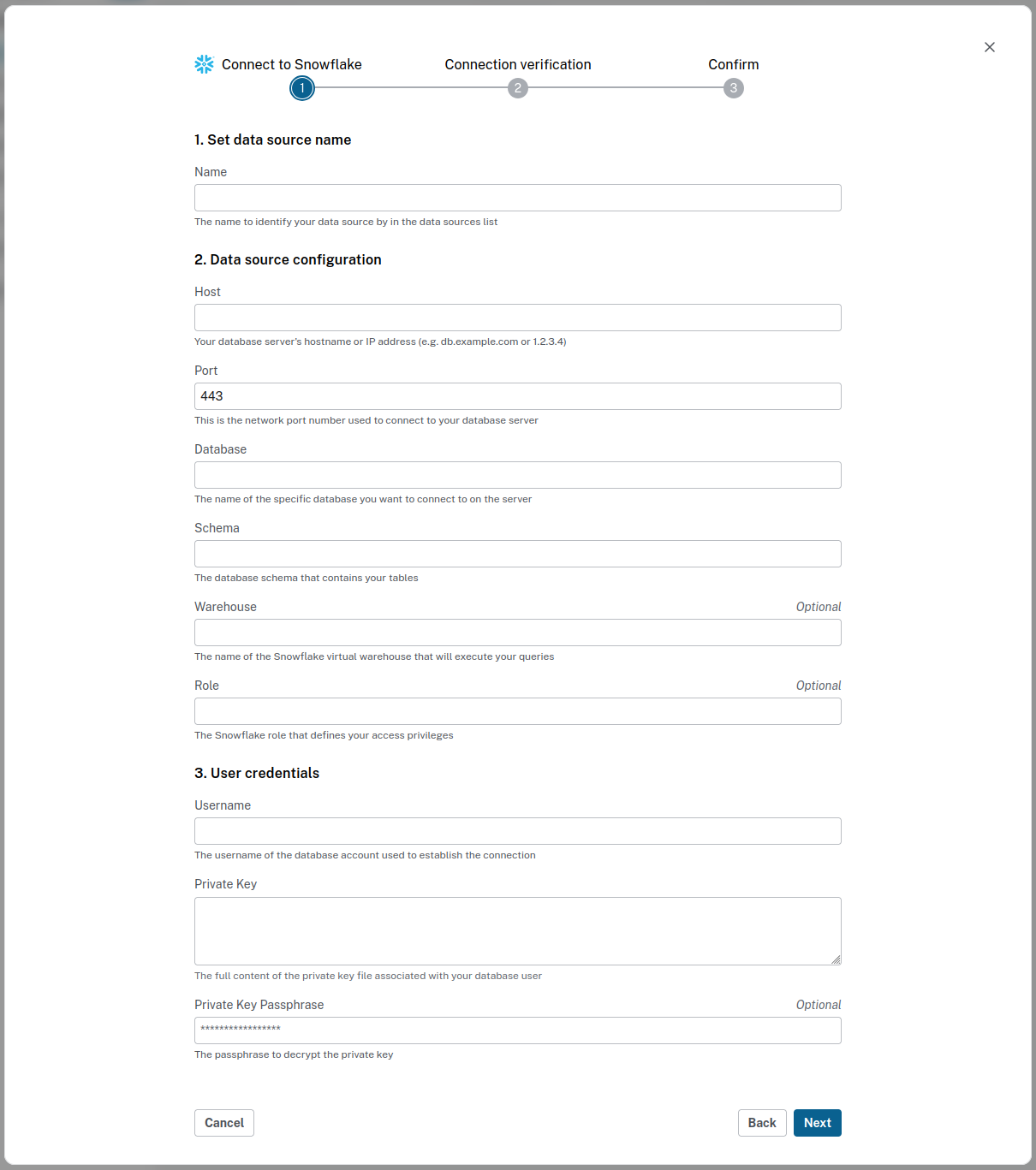
To create a new Snowflake data source:
-
Assign a name
-
Configure it with:
-
Host (Account/Server URL under Connect a tool to Snowflake in Snowflake),
-
Port ("443" is the default),
-
Database (An existing database in your Snowflake),
-
Schema (The associated Snowflake schema version),
-
Optionally a warehouse and a role. You can set defaults in Snowflake, see Set a default warehouse.
-
-
Pass your user credentials:
-
Username (Your Snowflake user),
-
Private key (The private key of an SSO key pair, see Create an SSO key pair on how to create one),
-
Optionally a private key passphrase.
-
Managing a data source
The […] more menu allows you to display the details of the data source and to create a data model from it. The Data sources tab in the Import tool displays a table of your data sources.
Security
Virtual Graph uses the specified credentials to authenticate a given security principal to the datalake house. Note that the connection is established in the name of the security principal which differs from the Neo4j database user.
Role-based access control as well as any row-based restrictions for the security principal in the datalake house affect query results: Queries which are trying to access rows with restrictions will only return data which are accessible, but not data from restricted rows. This only affects the row data themselves. Tables and views on the other hand must be visible, otherwise they would not have been available during the mapping process when setting up the connection between Virtual Graph and the datalake house.
Additionally, Virtual Graph verifies the existence of mapped tables and columns during startup and fails if a given security principal cannot access them.