Migrate to Neo4j Enterprise Studio
This guide maps legacy Neo4j Bloom plugin configurations (neo4j.conf) directly to Neo4j Enterprise Studio format (config.yaml), permissions, and SSO setup.
Minimal migration mapping
In the Bloom plugin, parameters are declared directly in neo4j.conf alongside database engine settings.
In Enterprise Studio, tool enablement, asset persistence, and authorization are managed in Enterprise Studio’s centralized config.yaml file.
neo4j.conf(legacy)# Legacy Neo4j Bloom Plugin Configuration
dbms.bloom.license_file=import/bloom.license
server.unmanaged_extension_classes=com.neo4j.bloom.server=/bloom
dbms.security.http_auth_allowlist=/,/browser.*,/bloom.*
dbms.security.procedures.unrestricted=bloom.*
dbms.security.procedures.allowlist=bloom.*
dbms.bloom.authorization_role=admin,PUBLIC,architectconfig.yaml (target)version: 1
kind: neo4j-enterprise-studio-config
license:
path: /licenses/nes.license
server:
port: 8080
tools:
bloom:
enabled: true
assetStore:
default:
uri: neo4j+s://my-neo4j-host:7687 # use an encrypted scheme (neo4j+s / bolt+s) in production
database: tools-storage
authentication:
basic:
username: tools_service
password: my-service-password # prefer passwordFrom (Secrets Manager) in production
neo4jDeployments:
production:
name: Production Graph
uri: https://my-neo4j-host:7473 # use https in production
# When the authentication block is omitted, both basic and OIDC are enabled.
authentication:
basic:
enabled: true
oidc:
enabled: false
# authorization.roleMapping is optional; when omitted it defaults to
# studioAdmin for the Neo4j `admin` role and studioCreator for PUBLIC.
authorization:
roleMapping:
- role: studioAdmin
members:
- kind: databaseRole
name: admin
- kind: databaseRole
name: architect
- role: studioCreator
members:
- kind: databaseRole
name: PUBLICDetailed parameter breakdown
-
License and tool enablement
-
Bloom plugin:
dbms.bloom.license_fileprovides a path to the Bloom license whileserver.unmanaged_extension_classesregisters Bloom as a plugin inside the database HTTP server. -
Enterprise Studio uses a unified license:
license.path. Tools are explicitly enabled or disabled in thetoolssection:tools.bloom-enabled:true.
-
-
HTTP routing and extensions
-
Bloom plugin:
dbms.security.http_auth_allowlistdictates unauthenticated endpoint bypasses for Bloom UI static assets. -
Enterprise Studio operates as a standalone proxy/service listening on its own port,
server.port:8080, and thus database-level HTTP allowlists are no longer required.
-
-
Stored asset and Perspective management
-
Bloom plugin: Perspectives are saved either in the browser’s local storage or directly in the graph data via
bloom.*procedures. -
Enterprise Studio standardizes Perspective and Scene storage inside a dedicated storage database,
assetStore.default. Enterprise Studio connects using a dedicated service account credentials block.
-
-
Authorization and RBAC
-
Bloom plugin:
dbms.bloom.authorization_roletakes a flat comma-separated list of database roles allowed to open Bloom. -
Enterprise Studio: Authorization is structured under
neo4jDeployments.<deployment_id>.authorization.roleMapping. Database users or roles are mapped to Enterprise Studio’s permission tiers (member.kindisdatabaseUserordatabaseRole):-
studioCreator: Full ability to create, list, read, edit, save, and export their own Perspectives, Scenes, and dashboards. -
studioAdmin: Full administrative control over all of Enterprise Studio’s assets. This includes everythingstudioCreatorcan do, plus the ability to view and manage all users' private assets, update or delete any Perspective, Scene, or dashboard, and manage sharing policies (access control) on any asset.
-
-
When roleMapping is omitted, Enterprise Studio applies the following default: studioAdmin for the Neo4j admin role and studioCreator for the PUBLIC role.
A custom roleMapping replaces the default completely, it is never merged.
Database privileges migration
Existing schema inspection privileges remain unchanged, while additional DBMS-level privileges must be granted to enable collaboration features.
-
Graph schema inspection (retained from existing setup)
If schema inspection privileges are already configured in the existing Bloom plugin environment, no changes are required.
-- Already present in legacy setups (No change needed) GRANT SHOW CONSTRAINTS ON DATABASES * TO reader; GRANT SHOW INDEXES ON DATABASES * TO reader;Purpose: Enables Perspective generation, schema auto-discovery, and property search indexing.
-
Asset sharing (additional requirement for Enterprise Studio)
To enable centralized asset sharing in Enterprise Studio (granting access to Perspectives, Scenes and dashboards to other users or roles), you have to add the following DBMS-level privileges:
-- Additional privileges required for NES sharing functionality GRANT SHOW ROLE ON DBMS TO reader; GRANT SHOW USER ON DBMS TO reader;Purpose: Allows Enterprise Studio to query the DBMS directory to populate user and role selection lists inside asset-sharing interface modals. If you have users with other roles, you need to ensure those roles also have these permissions.
SSO migration
When migrating from Bloom plugin to Enterprise Studio, the SSO architecture shifts from directly authenticating Bloom web sessions against Neo4j’s OIDC provider to a two-tier model separating user authentication from service account storage authentication.
-
End-user SSO and local user resolution
-
Legacy Bloom plugin model
In the Bloom plugin, OIDC/SSO (Keycloak, Okta, Microsoft Entra ID) was configured directly in
neo4j.conf`under `dbms.security.authentication.providers=oids.*.-
User directory impact: Federated SSO users log in directly without needing a local record in the Neo4j database user directory.
-
Limitation: Sharing Perspectives requires mapping LDAP/SSP groups to database roles (
dbms.bloom.authorization_role).
-
-
Enterprise Studio model
Enterprise Studio authenticates users against Neo4j deployments via OIDS or basic credentials. However, to enable individual user asset sharing (sharing Perspectives, Scenes, or dashboards directly with a colleague by name), Neo4j must resolve the federated identity to a local record.
-
Individual sharing requirement: To allow Enterprise Studio to list and select individual SSO users in sharing modals, enable local user enforcement in `neo4j.conf`on target deployments:
# Add to neo4j.conf on target Neo4j deployments
dbms.security.require_local_user=true
This ensures that an internal database record exists for federated SSO users so Enterprise Studio can resolve their identity via
SHOW USERS ON DBMS. Without this setting, assets can still be shared with database roles, but individual user sharing is disabled.
-
-
-
Service account SSO (asset database)
Enterprise Studio persists internal tool assets (Perspectives, Scenes, and dashboards) in a dedicated database (
tools-storage). In production environments, authentication for this service connection can use OIDC Client Credentials instead of static basic credentials.-
Configure identity provider and Neo4j (
neo4j.conf)-
Register a confidential client in the Identity Provider (e.g. Keycloak, Entra ID) and enable the Client Credentials grant.
-
Assign the client to an IdP group mapped in
neo4j.confto a role with asset database permissions (architectorstudio_service_role).
-
-
Configure Enterprise Studio storage connection (
config.yaml) Configure Enterprise Studio to authenticate its service connection using the client credewntials token endpoint:assetStore: default: uri: neo4j+s://my-neo4j-host:7687 # encrypted scheme required to protect the bearer token database: tools-storage authentication: oidc: tokenUrl: https://idp.example.com/oauth2/token # must use https clientId: studio-storage-sa clientSecret: ${NES_ASSETSTORE_CLIENT_SECRET} scopes: [] # optional; Keycloak needs none, Entra ID expects ["api://<neo4j-app-id>/.default"]Do not write the client secret into the
config.yamlfile. Enterprise Studio does not perform${VAR}interpolation in the file. Instead, a placeholder would be sent literally as the secret. Supply the secret at runtime via an environment variable override instead:Export NES_assetStore_default_authentication_oidc_clientSecret="your-client-secret"Or resolve it from a cloud secrets manager (recommended for production):
    secretsManager:
      aws:
        enabled: true
        region: eu-west-1

    assetStore:
      default:
        uri: neo4j+s://my-neo4j-host:7687
        database: tools-storage
        authentication:
          oidc:
            tokenUrl: https://idp.example.com/oauth2/token
            clientId: studio-storage-sa
            clientSecretFrom:
              secretRef:
                type: aws # or azure / gcp
                name: nes-assetstore-client-secret
The
clientSecretandclientSecretFromare mutually exclusive and exatly one must be set (via file, environment, or secret reference).
-
Migrate Perspectives and Scenes
You can also migrate your Perspectives and any Scenes belonging to the Perspectives to the asset storage in Enterprise Studio.
This way, you can use Perspectives and Scenes you have created in Desktop or standalone Bloom, in Enterprise Studio.
Note that you need to be a studioAdmin in Enterprise Studio to perform the migration (see Enterprise Studio → Role mapping for more information).
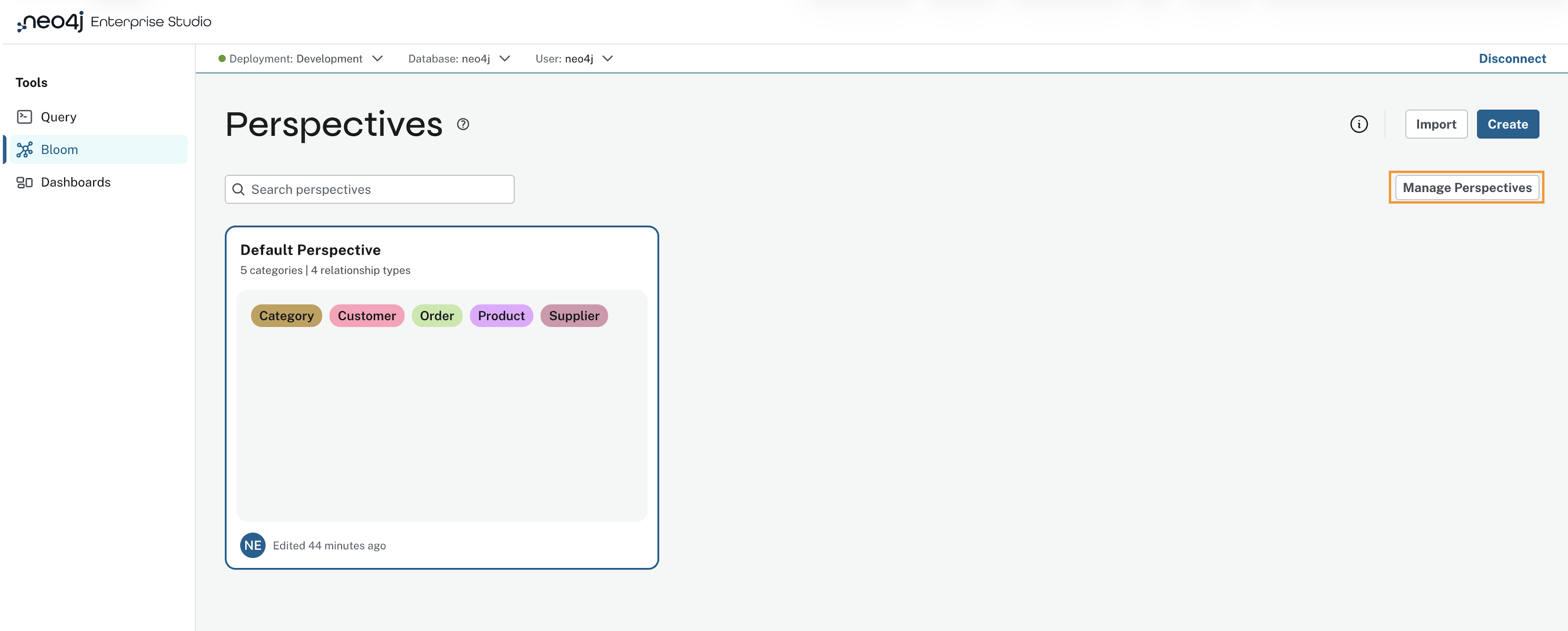
The migration is done from the Perspective gallery, located on the left of the Settings header. Use the Manage Perspectives button to access the available Perspectives. Select the Plugin tab and choose which Perspective(s) to migrate from the plugin.
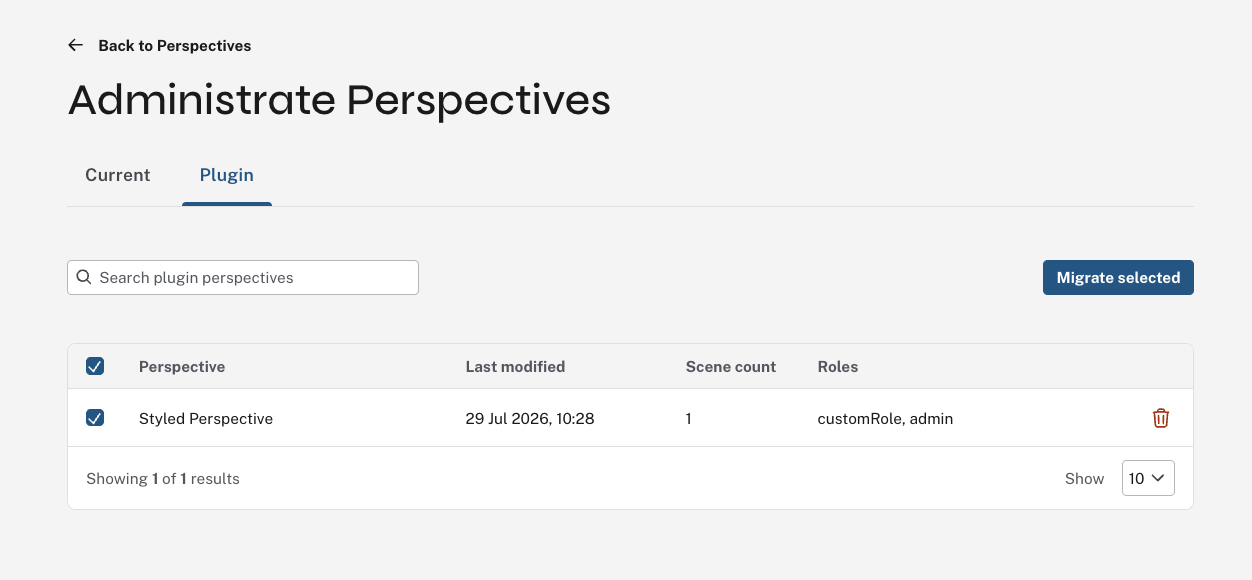
Use Migrate selected to continue.
The next step allows you to migrate any Scenes associated with the Perspective(s) by checking the Migrate Scenes box.
Additionally, if the Perspective is shared with any database roles on the plugin-side, you can opt to migrate this as well, to Enterprise Studio by checking the Keep group sharing box.
In that case, Enterprise Studio assigns the same roles and assign them as VIEWER of the Perspective/Scene.
This means that any users with access via their database roles, can view the Perspective (and Scenes), but not edit it.
The owner of the Perspective is the only user that can make any changes to the Perspective.
The next step allows you to assign ownership of the migrated Perspective and associated Scenes. If you migrate multiple Perspectives, ownership applies to all of them. Select which Enterprise Studio user should own the migrated Perspective(s).
If you have opted to migrate Scenes as well, this step allows you to select which Enterprise Studio user to assign the Scenes in each Perspective to. You can re-assign ownership to any listed user, it can be a different user than the Perspective owner. The list of migrated Scenes includes the plugin user who created the Scene(s). If that user exists as an Enterprise Studio user, they are preselected, otherwise the default is the owner of the associated Perspective. If a plugin user has created multiple Scenes, they must all be assigned to the same Enterprise Studio user.
The last step allows you to review the selections you have made and show Perspectives, Scenes, and their respective ownerships. Use the Back button if you need to change anything, or else Confirm migration to complete the migration.
If you want to change Perspective ownership after the migration, you can do so from the […] menu on the Perspective in the Current tab. You access this via the Manage perspectives button in the Perspective drawer.
Note that you cannot change the ownership of the Scene after the migration.
Another way of accessing Perspectives you have created in Desktop or standalone Bloom in Enterprise Studio, is to export them from their original location and then importing them in Enterprise Studio. For more information on how to do this, see Neo4j Aura → Migrate metadata → Perspectives. Note that exporting and importing a Perspective does not include associated Scenes.